
Tutorial
Index
Setup summary
Here's a tutorial to help you set up the Enrich with AI Phantom:
Provide the spreadsheet containing the data you want to enrich and indicate the columns
You have two options:
Use a spreadsheet containing your data
Create a spreadsheet with Google Sheets containing the data you want to enrich. Organize the data in columns and make sure to have clear headers for each column.
Make this spreadsheet public so PhantomBuster can access it.
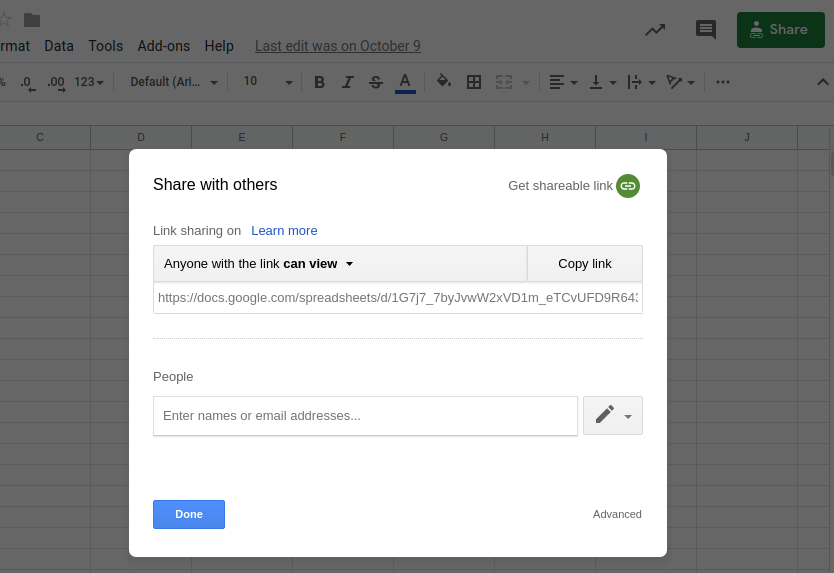
Copy the spreadsheet URL and paste it into your Phantom's setup.
Use data extracted by another Phantom
You can select the results file of any of your previously launched Phantoms by clicking on the "My Phantoms" tab, then choose the file you want from the dropdown menu.
Choose the columns to enrich
Enter the column names from your spreadsheet that you want to use for enrichment. Include only the necessary columns, as not all data may be relevant for the task. Type each column name on a separate line.Choose the Enrichment Mode: Row by Row or Bulk
In this step, you'll choose between two Enrichment Modes, either processing your data row by row (Individual Rows) or all at once (Bulk). Select the mode that best aligns with your use-case and the nature of your data. Keep in mind the different capabilities of each mode and how they affect your desired results.
Set up prompts for the GPT API to guide the enrichment process
In this step, you'll select or create a prompt that the AI will use to enrich your data. Choose from the list of pre-filled prompts, or craft a custom prompt tailored to your specific requirements. Ensure that the prompt is clear and concise to obtain the most accurate and relevant results from the AI. If you're uncertain about crafting a prompt, start with one of the existing options and feel free to modify it as needed.
Here's an example of a prompt for analyzing scraped reviews:
Analyze the following review and determine the overall sentiment (positive, negative, or neutral). Provide a summary of the main points mentioned in the review. Also translate the review into French. Format the response as a JSON object with keys 'sentiment', 'summary' and 'translation', in this parsable JSON format, as a single flat object: { sentiment: "...", summary: "...", translation: "..." }

