
Phantom
1 slot

Data Scraping Crawler

Tutorial

  1. Setup summary

    Here's a tutorial to help you set up the Data Scraping Crawler:

  2. Give the URLs of the web pages you're interested in

    You have two options:

    1. Process a single website
    Enter your URL directly into the Phantom's setup.

    2. Process multiple websites
    Create a spreadsheet with Google Sheets. Copy the website URLs and paste them into your spreadsheet - one URL per row, all in column A.
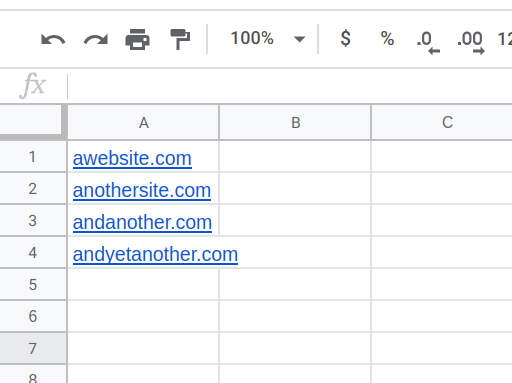
    list of urls

    Make this spreadsheet public so PhantomBuster can access it.
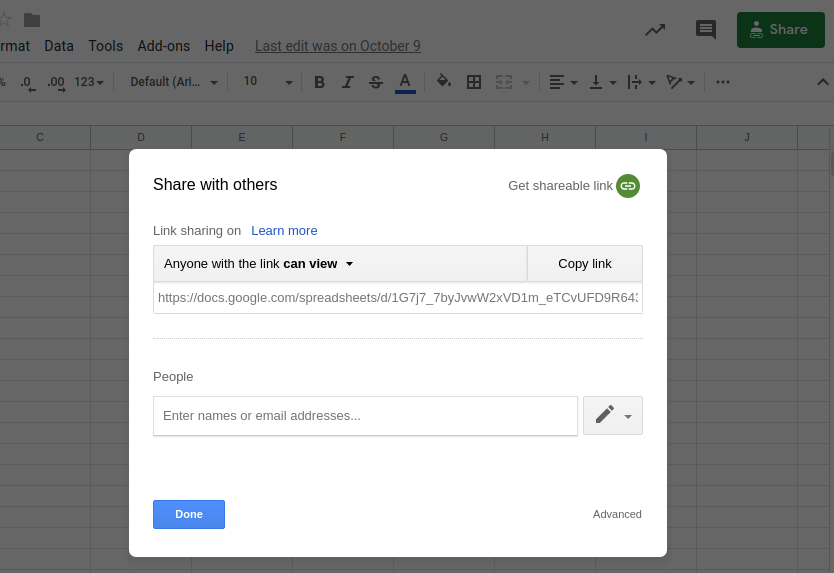
    Screenshot_from_2019 11 20_19 01 17

    Copy the spreadsheet URL and paste it into your Phantom's setup.

  3. Specify which contact and social media data you want to scrape

    Select which of the data below you would like to scrape from each website by checking the boxes of each one you want:

    • Email addresses

    • Phone numbers

    • Facebook page URLs

    • Instagram profile URLs

    • Twitter profile URLs

    • LinkedIn company page URLs

    • YouTube channel URLs

  4. Pick the condition under which the Phantom should exit a website

    When you really start digging into a website, you'll realize you can dig very far and even get lost in the vast depths of some. To stop your Phantom continuously digging and getting stuck on one site, you'll need to choose a condition under which it will stop its scrape and exit the site. This will save your execution time and ensure all your websites get processed.

    Depending on what you want, you can choose from the following options:

    • Website depth
      This refers to the number of layers of a site the Phantom will visit before exiting, collecting any relevant data it finds along the way.
      For example, setting a depth of 0 means that the Phantom will visit the URL you've given and go no further, while a depth of 1 means it will also visit every link on that page, and a depth of 2 every link on those pages, and so on.
      Take note: Setting a depth of 2 or more is not recommended, as it means your Phantom will likely take a very long time to run.

    • When an email address is found
      The Phantom will exit after having found an email address.

    • When a phone number is found
      The Phantom will exit after having found a phone number.

    • When a social network is found
      The Phantom will exit after having found any social media page.

    • After having opened X pages
      The Phantom will exit after having opened the defined number of subpages on the site.

  5. Define advanced settings

    Scrape multiple results per website
    Check this box if you want to extract not only the first but every available instance of the data you're scraping on all the pages you're browsing.

    Only visit web pages that start with a particular root URL
    This option is useful if you only want to visit specific pages within a website.
    For example, if scraping the PhantomBuster website, you could use https://phantombuster.com/phantombuster?category=linkedin
    as a root URL so that the Phantom will only visit pages starting with this, i.e. LinkedIn Phantom pages such as https://phantombuster.com/automations/linkedin/3149/linkedin-search-export
  6. How to use the Domain Name Finder

    PhantomBuster’s Domain Name Finder Automation uses public search engines to find a company’s main website domain. This short tutorial walks you through setting inputs, processing options, scheduling, and retrieving results.

    • Matching limitations:

      Returns one main domain (best match) per company. Country & Language settings guide search context but cannot strictly restrict results to specific TLDs (e.g., .fr).

    • Input requirements:

      Google Sheets must be public (anyone with the link); CSV URL input is available on paid plans only. No session cookies are required.

    • Performance & Safety:

      Processes ~14 domains per minute using 1 slot. Search engines may temporarily block shared IPs if requests are too frequent; if stopped, wait ~15 minutes or use a proxy.

    • Free plan limits:

      CSV exports include only the first 10 rows. JSON exports, dynamic CSV download links, and CSV uploads as inputs are unavailable.

    1. Provide the company names:

      Choose an input source (My Lists, manual names, a Google Sheet/CSV URL, or My Phantoms), then optionally set Country & Language to guide the search context.

    For spreadsheet/CSV inputs, the Phantom reads column A by default. To target a different column, specify its header name in the input settings.

    • Configure processing settings:

      Add any domains to ignore, set how many companies to process per launch for spreadsheet/CSV inputs, and optionally rename the results file.

    "Number of companies to process per launch" applies only to spreadsheet/CSV inputs (default 100). Renaming the results file between launches will create a new file and restart processing from scratch.

    • Select launch frequency:

      Run manually, schedule a one-time run, launch repeatedly, trigger it after another Phantom, or use Advanced scheduling for precise timing.

    • Optional: Adjust advanced settings:

      Keep defaults unless you need to fine-tune execution limits, retries, notifications, proxies, webhooks, or file management.

    • Launch and retrieve results:

      Click Launch, then open the Results tab to view found domains and download or export your results.

    For full details and configuration options, see the tutorial on the help center.

Have a question about this automation?

Get help from the PhantomBuster community!

Ask the community
