
If you’re still exporting spreadsheets and copying leads into your CRM manually, this integration playbook shows a faster workflow. PhantomBuster’s LinkedIn Search Export automation collects publicly available data from searches, post interactions, and company pages. Zapier triggers the workflow and runs the actions to add or update contacts in HubSpot, Salesforce, or Pipedrive.
This playbook shows how to build an AI-driven, no-code workflow that moves qualified leads into your CRM automatically. You can connect PhantomBuster’s automations, Google Sheets, and your CRM into a repeatable workflow your entire team can run. Most teams complete the initial setup in 10–15 minutes using the template, reducing manual copy-paste and duplicate entries.
Why this integration matters for revenue teams
Revenue teams lose hours wrestling files, reconciling duplicates, and trying to decide which fields they can trust. This slows follow-ups, weakens personalization, and creates reporting gaps. PhantomBuster captures the profiles; Zapier immediately creates or updates the matching CRM record so reps can follow up the same day.
You standardize field mapping, protect CRM data quality, and measure campaign impact through your CRM dashboards. Instead of juggling CSVs, you maintain a clean process to move and manage data across platforms so follow-up tasks are assigned with due dates and show up in reps’ daily views.
What this playbook delivers at a glance
This guide gives you a no-code integration playbook where PhantomBuster collects and enriches publicly available data, Zapier routes it across your tools, and your CRM stays the source of truth.
You’ll map a trigger, define the search (dedupe), then run create/update actions—step by step below. The guide explains the core blueprint: Trigger (Sheet/Webhook) → Search (Email → LinkedIn URL → Email+Domain) → If found: Update; else: Create → Add Task/Note. This covers dedupe logic, field mapping, and activity creation.
This workflow automates routine admin so your team spends time on conversations, not data entry.
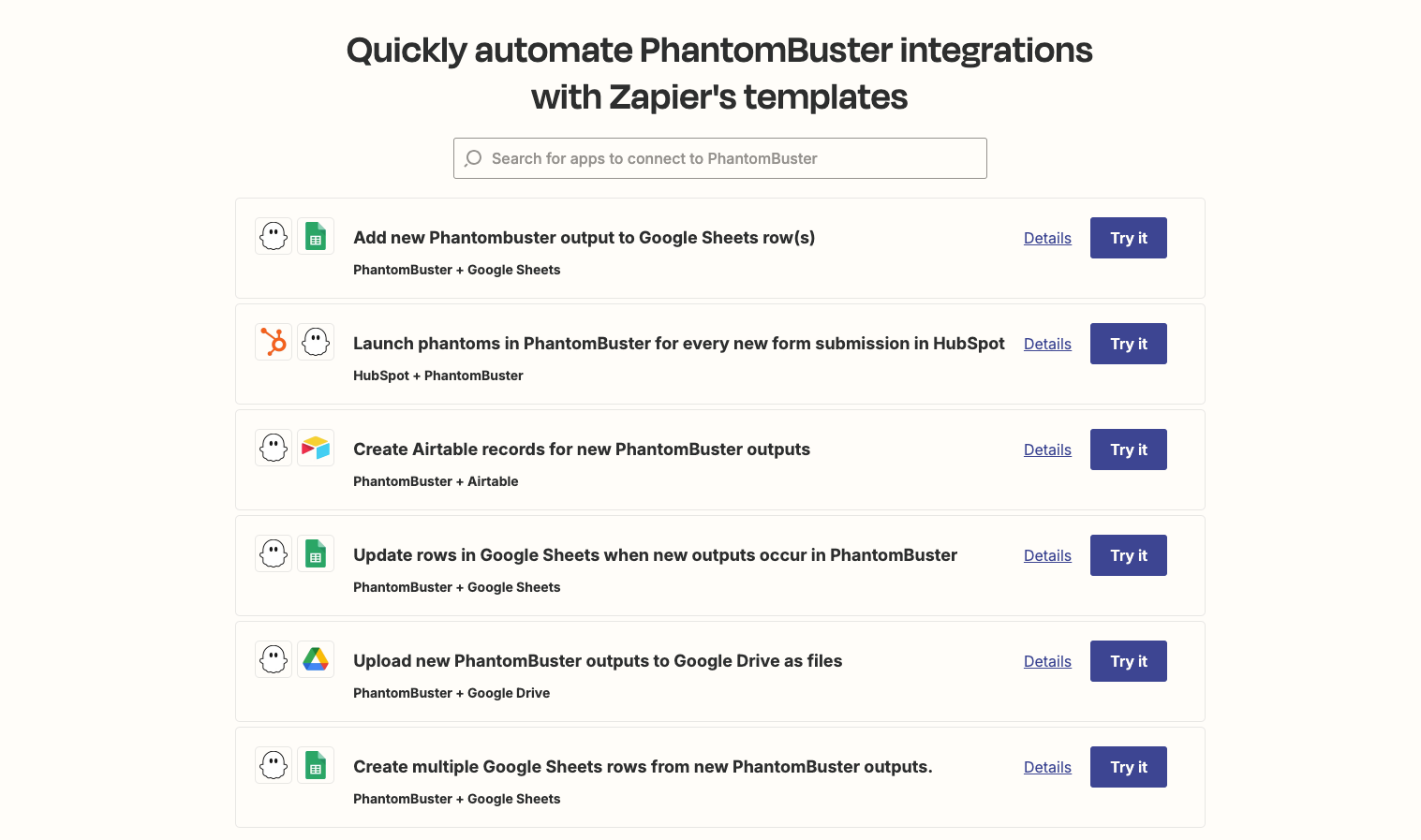
Pre-built templates: PhantomBuster automation → Zapier webhook → CRM create/update action
How the core workflow runs end-to-end
How to capture prospects with PhantomBuster
Start from a targeted search such as a job title combined with an industry filter. PhantomBuster’s LinkedIn Search Export automation collects publicly available profile URLs, names, titles, and companies; business emails are included only when available and permitted by platform policies.
Use PhantomBuster’s AI Enricher automation to normalize titles, fix name casing, and pull company domains. You can also tag each lead with campaign metadata such as a post URL, an event name, or a segment. This dataset becomes the input that drives the playbook’s triggers and actions downstream.
How should you clean and standardize the data?
Standardization makes automation and app integrations dependable. Clean name casing, split names, extract company domains, and format LinkedIn URLs. If you keep a staging sheet, use Google Sheets so the data stays searchable and easy to audit. This gives you a simple way to compare new data with existing CRM records and avoid overwriting fields you trust.
How should you orchestrate triggers, actions, and search in Zapier?
Zapier structures your workflow as a sequence of trigger, action, and search steps. Here’s the pattern:
- Trigger: The event that starts your Zap, for example “New Row in Google Sheets,” “Catch Hook webhook from PhantomBuster,” or “New Contact in CRM.”
- Actions: The steps your Zap runs next, such as “Find Contact,” “Create Record,” “Update Record,” or “Create Task.” These actions move and manage data across your stack.
- Search: The lookup step that prevents duplicates. Search by email first, then by LinkedIn URL, and finally by email combined with company if needed. This pattern keeps data healthy and your CRM the source of truth.
This trigger–search–action pattern is the backbone of most Zapier integrations. If you enrich data in PhantomBuster first, the cleaner input helps your Zapier integration route records more reliably. This keeps enrichment upstream and no-code.
Zapier workflow: Trigger → Search (dedupe) → Branch (Update or Create) → Add Task
How do you upsert into the CRM and create tasks?
For every person, start with a search step to check for an existing contact:
- If a match appears, update the existing record.
- If not, create a new record and add the contact to the right list or lifecycle stage.
Attach a task or note that includes the LinkedIn profile URL, the campaign or post they engaged with, and the planned first touch. This makes lead management visible in daily CRM views and helps managers track campaign impact—PhantomBuster enrichment + Zapier actions feed your CRM reports.
How should you monitor performance and iterate?
Use your CRM dashboards to measure reply rates and meeting rates by source. Reporting becomes straightforward when each contact includes consistent fields (e.g., Source: LinkedIn_Search | Event | Post; Campaign_ID: 12345).
If replies slow down, adjust your playbook to improve timing, experiment with enriched personalization using PhantomBuster’s AI Enricher automation upstream, or split your Zapier workflows by segment to keep messages relevant.
How to handle existing data and deduplication
Duplicate records derail reporting, routing, and follow-ups. Build a consistent dedupe key order in Zapier so every playbook treats existing data the same way.
- Primary: work email
- Secondary: LinkedIn profile URL
- Tertiary: email combined with company domain
Structure your Zapier workflows with automation that branches cleanly. When the search step finds an existing contact, update the existing record with new information such as title or company. If the person has changed roles, add a short note so historical values stay visible. When no match is found, create a new record, tag the source, and add the contact to the right list or segment lifecycle stage.
This approach keeps activity history tied to the right person and prevents orphan or duplicate shadow records from appearing in your CRM.
Where this extends beyond sales
Use the same trigger–search–action pattern to support marketing handoffs and partner requests while keeping the CRM clean. For example, PhantomBuster’s LinkedIn Post Commenters automation captures post interactions; Zapier creates a support ticket or adds a CRM task. The same playbook works for webinar registrants, campaign operations, and ops reporting so leaders can track which plays move pipeline.
If you add webinar or event tools later, keep the same trigger–search–action blueprint so contacts flow into the CRM the same way.
How to set this up in minutes
- Create your staging source: Choose a trigger such as “New Row in Google Sheets” or a “Catch Hook” webhook receiving data from PhantomBuster. Add a few test rows to validate field mapping and confirm how the playbook will move and manage data.
- Add your search step: In your Zapier account, add a search step by email. If no match appears, add a second search by LinkedIn URL. This prevents duplicates and makes the Zap’s decision path easy to review.
- Branch by result: If the search finds a record, update an existing contact. If not, create a new record and add the contact to the right list or segment. Clear naming shows what happens after the trigger and keeps the workflow maintainable.
- Attach activities and tasks: Add a note with key source fields such as post URL or event name and schedule a task for the owner. Align due dates with your follow-up SLA so reps know when to act and what to do next.
- Activate the playbook: Turn on the Zap and run a 10-record test. You should see the Zapier trigger fire, the search step choose the correct branch, and the action event write the CRM fields. This confirms how the workflow behaves before scaling.
- Document the play: Add a simple flow illustration to your wiki showing what happens after the trigger. This playbook helps new teammates ramp quickly and keeps the workflow easy to maintain.
Practical field mapping tips you can reuse
- Names: Split into first and last for personalization.
- Job titles: Use Title Case and group into 3–5 personas using PhantomBuster’s AI Enricher automation.
- Company domain: Required for account matching and a reliable fallback for dedupe.
- LinkedIn URL: Store in a dedicated property as your secondary dedupe key.
- Source: Use a pattern like LinkedIn_Search | Event | Post so your CRM reporting can compare campaign impact.
- Owner: Use round-robin or territory-based routing.
- Notes: Add the PhantomBuster list name, run ID, and relevant asset details to maintain the playbook.
How do you keep this safe as you scale?
Keep volume reasonable and human-like. Use PhantomBuster’s built-in scheduler with daily caps and random delays, then let Zapier pace the rest. This works because platforms watch for sudden spikes and robotic timing patterns; spreading activity across hours reduces detection risk.
As volumes grow, you can add rate-limit checks, Slack alerts on errors, and a small parking sheet in Google Sheets for exceptions. The result is a reliable play that automates repetitive steps, keeps reps focused on conversations, and stays safe at higher volumes.
FAQs
What is a Zapier trigger, and why does it matter?
A Zapier trigger is the event that starts your Zap, such as “New Row in Google Sheets,” “Catch Hook webhook,” or “New Contact in CRM.” Refer to the trigger–search–action blueprint above for the full workflow pattern.
How do I avoid creating duplicates in my CRM?
Add a search step by email, then a second search by LinkedIn URL. Update an existing record if found, or create a new contact if not. This keeps your CRM clean.
Can I use Google Sheets as my source?
Yes. Google Sheets is easy to audit and track formatting. It also works well as a Zapier integration trigger during testing.
What fields should I map from PhantomBuster to my CRM?
Map first name, last name, job title, company, company domain, email (if available), LinkedIn URL, source, and owner. These fields support automated lead management and accurate attribution.
Do I need to write code for any of this?
No. This playbook uses no-code steps: PhantomBuster automations capture and enrich data; Zapier routes it into your CRM.
Get started today
Use PhantomBuster’s LinkedIn Search Export and AI Enricher automations with a Zapier webhook to auto-create or update contacts in your CRM. Document the play in your wiki and run a 10-record test today. Once you’ve validated field mapping and dedupe logic, scale the workflow to your full prospect list and let your team focus on conversations instead of manual data entry.