
LinkedIn restrictions typically result from abrupt behavioral changes more than from the tool you use. Sharp spikes versus your recent baseline are the main risk.
It’s not about a safe number
There is no universal “LinkedIn limit” that guarantees safety. Two users can run the same workflow and see different outcomes.
In practice, LinkedIn weighs your recent activity against your own history—how often you log in, how fast you take actions, and how much you engage. The platform compares your current behavior to what it has observed from your account over time.
Staying under a number you found online won’t help if it’s a sudden spike for your account. Risk is contextual, not universal.
Use automation within LinkedIn’s terms and your local laws; prioritize consent and relevance over volume.
What actually triggers restrictions on LinkedIn
The primary trigger is sudden change—what we call a “slide then spike” pattern. This pattern involves an account that stays quiet (or close to it) for some time, then suddenly ramps up activities like data extraction.
In many cases we see forced sign-outs or verification prompts after a sharp increase in actions. This happens when the new activity level contrasts sharply with the account’s established behavior.
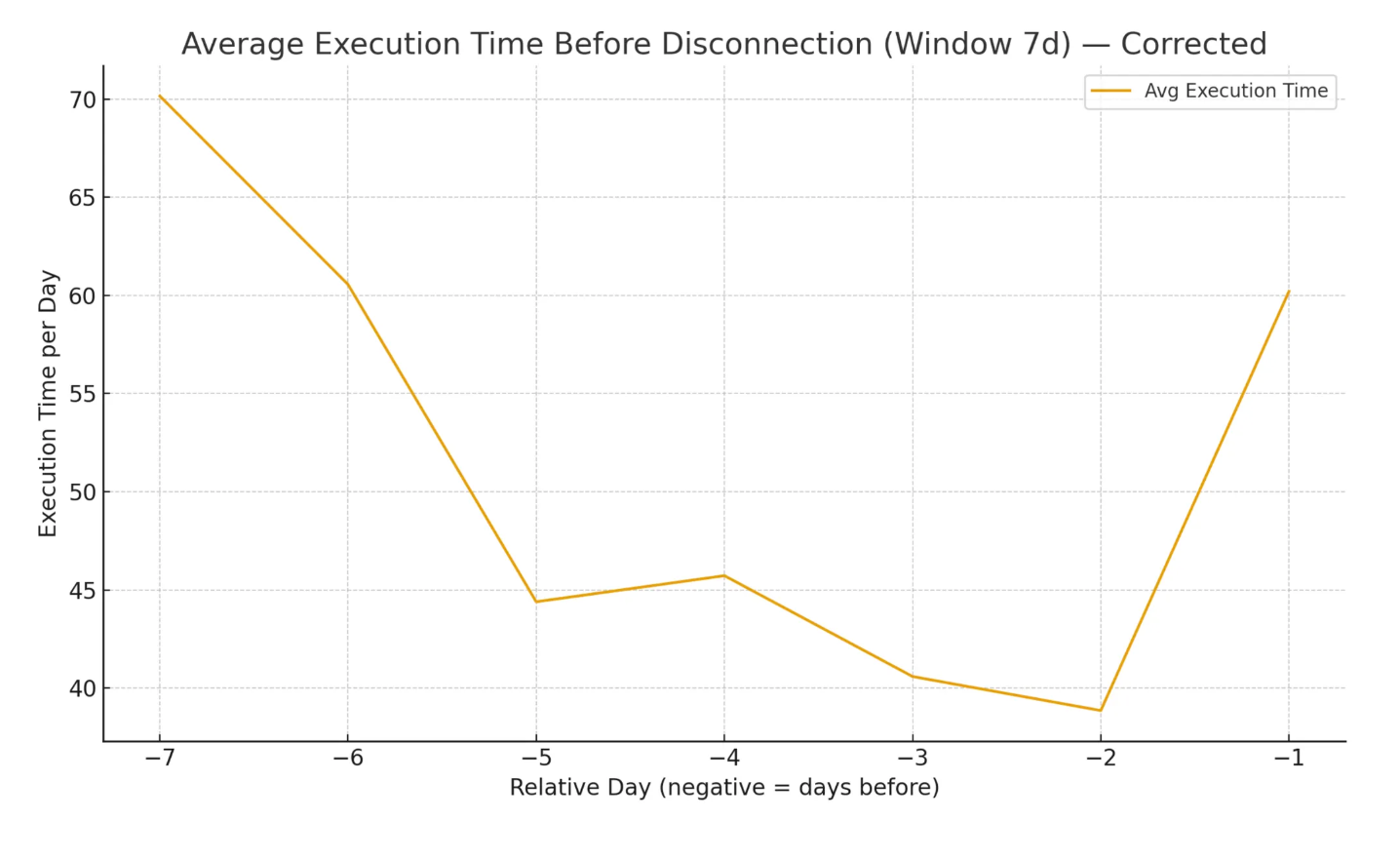
LinkedIn doesn’t behave like a simple counter. It reacts to patterns over time. Avoid slide and spike patterns. Gradual ramps outperform sudden jumps.
Brian Moran, PhantomBuster Product Expert
A safer approach: consistency before scaling
Safer data extraction is less about “acting human” or staying within a certain limit. It’s more about consistency, so your scaling looks gradual.
Start at the baseline activity level of your own LinkedIn account. Over the course of a few weeks, ramp up the volume you extract slowly.
In PhantomBuster, use Automations’ Schedule to split runs across the day and Daily caps to limit total actions. This distributes your activity into realistic patterns rather than concentrated bursts.
Avoid short bursts; keep activity evenly paced.
If you start seeing repeated sign-outs or verification prompts, treat forced sign-outs or verification prompts as a slowdown signal. Pause, reduce actions per session, and resume at a steadier pace.
How to scale data extraction safely (execution)
Here’s how to ramp up your LinkedIn data extraction without triggering restrictions:
1. Establish your baseline
Track your normal LinkedIn activity over 7 days. Count how many actions you take per session on average—profile views, searches, connection requests, and messages combined.
This baseline becomes your starting point for automation.
2. Increase volume gradually
Increase your total daily actions by 10–20% per week. This gradual ramp keeps you within the bounds of what LinkedIn expects from your account.
If your baseline is 30 actions per day, start your first automation week at 33–36 actions per day. The following week, move to 36–43 actions per day.
3. Split activity across sessions
Distribute your daily actions into 2–4 separate sessions with randomized delays between them. This mimics natural usage patterns better than one large batch.
Use PhantomBuster Automations’ built-in scheduling to space runs throughout your workday—for example, morning, midday, and late afternoon.
4. Set daily caps and pause rules
Configure a daily action limit that aligns with your gradual ramp plan. When you hit verification prompts or forced sign-outs, pause for 24–48 hours before resuming at a reduced pace.
Define the next action for each segment you extract—connect, email, or enrich. Set your daily cap to match your follow-up capacity. For most reps, 40–60 records per day is sustainable.
Frequently asked questions
Is there a safe daily number for extracting leads?
No universal number exists. Safe volume depends on your account’s established behavior. A sudden jump to 100 actions per day is risky if your normal baseline is 20, even though 100 might be safe for someone whose baseline is 80.
Focus on gradual percentage increases (10–20% weekly) rather than hitting a specific number.
Does Sales Navigator change what’s safe?
Sales Navigator offers different search filters and higher search limits, but it does not grant immunity from behavioral detection. The same principle applies: LinkedIn still monitors for sudden spikes versus your historical pattern.
Sales Navigator accounts can often sustain higher volumes, but only if ramped gradually from their own baseline.
What signals mean I should slow down?
Watch for these indicators:
- Forced sign-outs requiring password re-entry
- Verification prompts asking you to confirm your identity
- Increased captcha frequency during searches or profile views
- Temporary restrictions on sending connection requests
Any of these signals means you should pause automation for 24–48 hours, then resume at a lower daily cap.
For a deeper dive into common LinkedIn detection patterns and safer workflows, read our LinkedIn Safety & Detection Guide.
Build a paced data extraction workflow with PhantomBuster Automations—schedule runs, set daily caps, and randomize delays.