
There’s a plethora of LinkedIn automation tools available that you can use while still keeping a targeted and personalized approach.
In this article, we’ll show you how to automate your LinkedIn outreach efforts using the PhantomBuster.
TL;DR
- You can use several LinkedIn automation tools for automating outreach as part of your outbound automation efforts. For the purpose of this practical guide, we’ll use PhantomBuster.
PhantomBuster LinkedIn Outreach Flow is designed to:
- Send connection invites to a list of prospects
- Send an introduction LinkedIn message with your request
- Send up to 3 follow-up messages
Step-by-step guide on how to automate LinkedIn outreach:
- Step 1: Choose a LinkedIn outreach automation tool. You can test PhantomBuster for free for 14 days. You can use this LinkedIn automation software on multiple LinkedIn accounts, including LinkedIn Sales Navigator. PhantomBuster is the safest LinkedIn automation tool for automated LinkedIn outreach.
- Step 2: Open the LinkedIn outreach flow. This is a pre-built automation available in PhantomBuster that other LinkedIn automation tools might not offer.
- Step 3: Share your list of LinkedIn prospects. You can use an existing list, your HubSpot CRM lists, or a Google Sheet URL.
- Step 4: Connect your LinkedIn account using PhantomBuster Chrome Extension, which automatically pulls your session cookie data.
- Step 5: Set automation behavior. To adhere to LinkedIn’s automation limits, we recommend starting by automating a maximum of 20 LinkedIn connection requests per day. You shouldn’t scale your automated outreach from day 1.
- Step 6: Write and customize your LinkedIn connection request message.
- (Optional) Step 7: Write, personalize, and schedule up to 3 follow-up automated messages.
- Step 8: Launch the automation and track results inside PhantomBuster.
LinkedIn outreach automation step-by-step
Ready to put this LinkedIn outreach automation tool to good use? Here’s a quick tutorial on how to get started with your outreach campaigns on autopilot.
1. Open the LinkedIn Outreach Flow
If you don’t have one already, create a PhantomBuster account. Don’t worry about the pricing—we offer a 14-day free trial, and you don’t even need a credit card to get started.
All set?
Now, let’s find the LinkedIn Outreach Flow. There are 100+ Phantoms and Flows available in PhantomBuster, but you can find this straight from your dashboard’s “Solutions” tab.
Once you’ve opened the page, select the “Use this Flow” button, and you’re ready to go.
2. Share your list of LinkedIn prospects
Next, we’re going to tell the Flow which people we want to send our LinkedIn outreach campaigns to.
There are 2 options for this:
Option #1: Share your LinkedIn Leads page
If you’ve already been using PhantomBuster for LinkedIn prospecting (go you!), you’ll see them in your dashboard’s “LinkedIn leads” tab.
From here, you can filter your leads down into more specific lists.
For example, here’s a list we made for growth marketers by scraping LinkedIn data.
Once you’ve created your list using prospecting tools, you can select it from the dropdown menu in the first step of your LinkedIn Outreach Flow setup, just like this:
Bonus tip: Read this in-depth guide to the LinkedIn Leads page for more details on crafting your LinkedIn prospect lists to perfection.
Option #2: Share a Google Sheet URL or CSV link
Alternatively, you might have imported a list of LinkedIn profiles from your CRM, and have them ready in a Google Sheets or CSV file.
Then, all you have to do is copy the URL of your Google Sheet or CSV file and paste it into the Flow setup, just like this.
If you’re sharing a Google Sheet URL, make sure the page is publicly accessible so that the Flow can view it.
Don’t have your LinkedIn prospects yet? Try these Phantoms out…
1. LinkedIn Search Export Phantom: Get prospects from a LinkedIn search by scraping the data.
2. LinkedIn Group Members Export Phantom: Find leads from a group.
3. LinkedIn Event Guests Export Phantom: Extract guests from an event.Then plug the results into this Flow, using the methods above. Easy peasy.
3. Connect your LinkedIn account
Next, we need to give PhantomBuster permission to act on our behalf on LinkedIn. We do this by adding one of these two extensions to our browsers:
Once you’ve installed the extension, you can connect to LinkedIn by clicking the “Connect to LinkedIn” button in your Flow setup.
Your session cookie will magically appear in the field, just like in the example below.
4. Choose how many connection invites to send
Here, you can decide how many connection requests to send each day.
We strongly recommend that you share a maximum of 20 connection invites per day to respect LinkedIn’s rate limits.
It’s also best to stick with sending during weekdays and working hours to mimic your usual human behavior as much as possible.
5. Write and customize your connection request message
Next, it’s time to write a LinkedIn message to accompany your connection request.
Sending a message will boost the chances of people accepting your invitation (hello, more first-degree connections), and it sets the tone for your future interactions with them.
Simply type out your LinkedIn message in your Flow setup using the personalized placeholder tags available. These tags can range from someone’s first name, to where they work, to their job title, and more.
Personalization lets you tailor each automated message to the recipient, boosting your chances of high response rates.
Note: Just bear in mind that emojis are not supported by this Flow. 😉❌
6. Write, personalize, and schedule up to 3 follow-ups
Now, you can set up your very own LinkedIn drip campaign.
Once someone has accepted your connection request, you can schedule up to 3 follow-up messages to kickstart your sales funnel.
You can write up to 8000 characters in each message. The first will be sent after the person has accepted your connection request, along with 2 further messages to be scheduled at time intervals that you choose.
These messages will only be sent if there was no reply from the recipient to the first message.
Bonus tip: You can also share attachments with your message. Check out these 23 lead magnet ideas for inspiration to attract more leads.
7. Launch the LinkedIn Outreach Flow (and enjoy)
Now, all that’s left to do is to kickstart the Flow, and then watch the results roll in.
From your “Report” tab under the launch button, you’ll see your progress in real-time, from the number of connection invites sent, to the acceptance rate, and the performance of your LinkedIn message sequences.
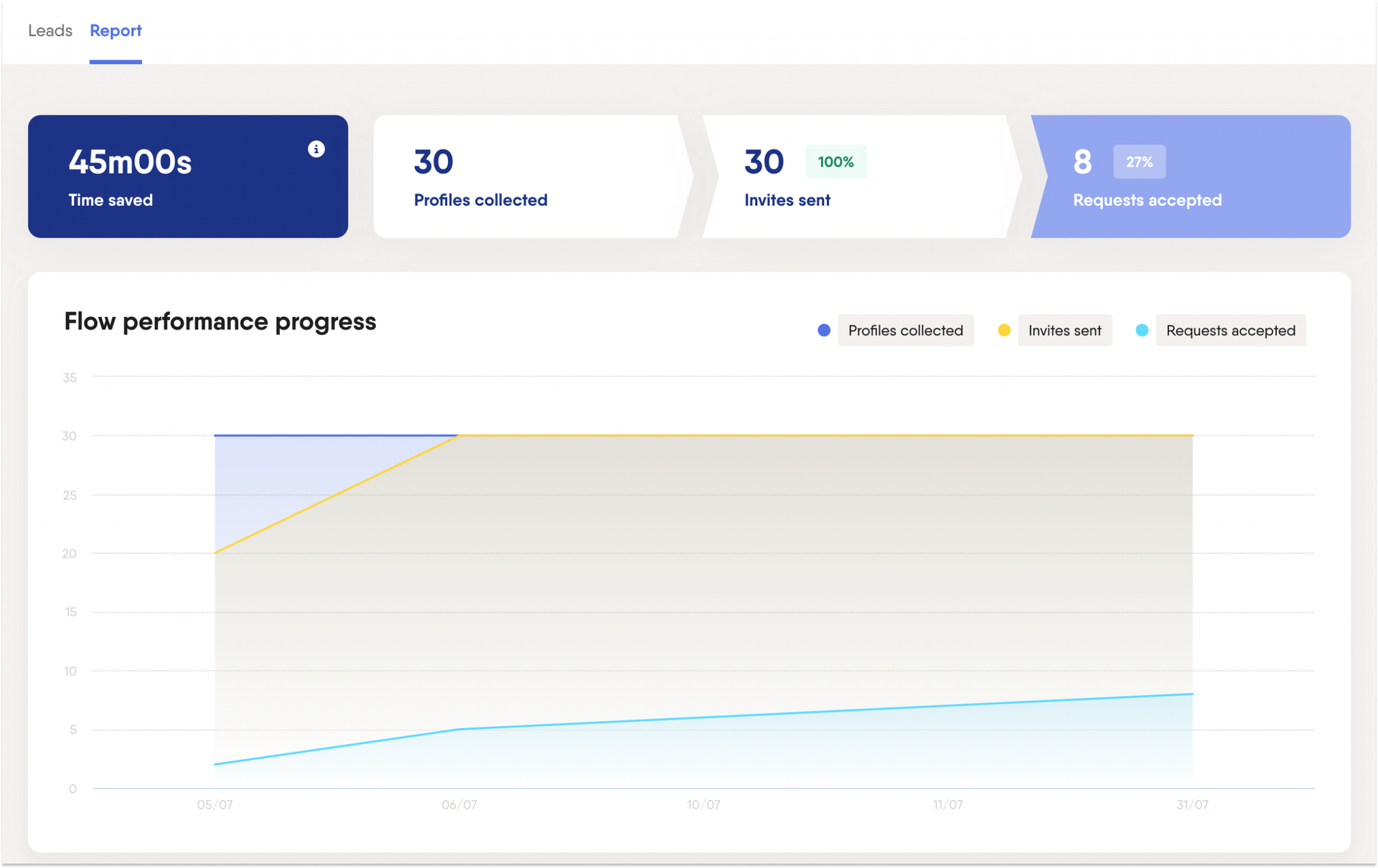
And it all happens on autopilot. PhantomBuster is a cloud-based software, which means that you don’t need to leave your computer open for this LinkedIn marketing tool to work.
You can scale your LinkedIn prospecting in the background, bringing you more connections, profile views, and qualified prospects while you’re safe and free to focus on more important things.
Best practices for LinkedIn outreach automation
Now, you know the best LinkedIn automation tool to level up your game.
Most importantly, you need to define how you’ll use it to get the best response rates and other metrics. Here are some quick guidelines for getting the most out of the LinkedIn Outreach Flow.
1. Connect with the right people
For maximum chances of success, make sure you’re targeting people who will be genuinely interested in your brand.
For example, you could extract LinkedIn profiles from groups in your niche or run filtered searches to reach the most relevant leads possible.
2. Use A/B testing to optimize your messages
It takes “trial and error” to find the right connection, request DM, and follow-up message to get results.
But you can manually test different versions of your personalized messages by switching them up each week and then comparing the results.
Over time, you’ll find out which ones are performing best, and you can stick with them.
3. Import the results via our CRM integrations
If you’re using PhantomBuster and LinkedIn as a part of your sales lead generation and cold outreach campaigns, you can easily import the results of your LinkedIn outreach automation results into HubSpot directly.
Alternatively, you can use other automations to export your leads into other CRMs
These Phantoms will funnel your results straight into your CRM, ready for the next step in your sales workflow. Here’s a video tutorial on how to use one of these Phantoms.
Conclusion
Now, you know how to harness your LinkedIn marketing automation tools to bring in new leads for lead generation using an automated LinkedIn outreach campaign.
But this workflow is just the beginning.
Once you’ve connected with these people, it’s up to you to nurture them—such as by endorsing their skills, regularly liking their posts, following up with any conversations you have, and more.
Ready to get started? Try PhantomBuster free for 14 days!