

For B2B sales teams in 2026, the monthly subscription for LinkedIn Sales Navigator is often the second largest line item in the tech stack after the CRM. But with plans getting costlier, CFOs and sales managers are asking the inevitable question: Is Sales Navigator worth the cost?
The short answer, according to our The State of Sales on LinkedIn for 2026 report, is yes. But there’s a major caveat.
Sales Navigator is your map to qualified prospects. It gives you advanced search filters and intent signals that free accounts can’t match. But viewing a list of prospects isn’t the same as having that data in your CRM, enriched with verified contact details, and ready for outreach.
Manual copy-paste and one-by-one connection requests drain time—our data shows sales reps spend 5–8 hours per week on these tasks—which erodes ROI quickly.
You’ll get more value by automating repeat tasks—list building, data enrichment, and CRM sync—using PhantomBuster’s Sales Navigator automations within LinkedIn’s operating limits. In this guide, we’ll explain why Sales Navigator is essential for lead discovery and how pairing it with workflow automation turns saved searches into actionable lead lists you can enrich and sync to your CRM.
The search advantage: why free LinkedIn accounts fail
According to our State of Sales report, only 15% of sales reps use a free LinkedIn account for outbound prospecting. Most others upgrade to a paid plan, primarily Sales Navigator.
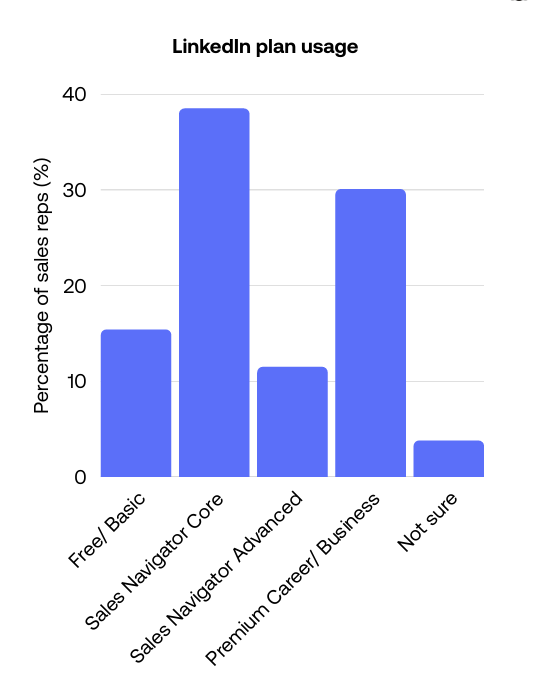
The primary reason sales professionals move to Sales Navigator is the advanced search filters.
With a free LinkedIn account, you get basic filters that often return irrelevant results. In contrast, Sales Navigator offers granular control, allowing you to filter by company size, headcount growth, and even “technologies used.”
A Founder in North America highlighted the frustration of limited access in our survey:
“LinkedIn is extremely limited in its ability to screen ICP and the data is less reliable than other sources.”
Without Sales Navigator, building precise lists using intent signals or job-change filters is slower and less reliable. But even with these filters, the job is only half done.
Viewing results is only step one—you need to export data you’re allowed to use, at safe volumes, and keep it current.
Maximizing ROI with PhantomBuster and Sales Navigator
Native export in Sales Navigator is limited—primarily to Advanced Plus and specific CRMs—so most teams can’t push list data directly to their tech stack.
That’s where PhantomBuster steps into the picture. By connecting PhantomBuster with your Sales Navigator account, you get more value from your subscription through a repeatable, six-step workflow sales workflow.
Execution: 6-step workflow from search to outreach
Here’s the system that helps sales teams move from saved searches to qualified pipeline:
1. Build your ICP search: Use Sales Navigator’s advanced filters to define your ideal customer profile—company size, technology stack, job changes, or recent funding. Save each search with a clear naming convention.
2. Export results to CSV or CRM: Run the Sales Navigator Search Export automation to extract hundreds to thousands of results per search, depending on pagination and platform limits. Provide the saved search URL, set page limits (typically 10–25 pages per run), and configure delays between requests to stay within LinkedIn’s rate limits.
3. Enrich with verified emails: Use the Sales Navigator Search to Emails automation to find professional email addresses via your chosen verification provider (e.g., Dropcontact, Hunter). Then run the as part of your lead enrichment process. Then run the Sales Navigator Profile Scraper automation to extract publicly available profile data—job title, company, location, and recent activity. Configure daily caps (50–100 profiles per day is a conservative starting range) and request delays.
4. Deduplicate and score leads: Before syncing to your CRM, remove duplicates by email or LinkedIn URL. Apply lead scoring based on seniority, company size, or engagement signals to prioritize your outreach list.
5. Sync to CRM: Push cleaned, enriched data into your CRM using PhantomBuster’s native connectors or webhooks to maintain CRM sync with Sales Navigator. Map fields carefully—match LinkedIn job titles to your CRM’s role taxonomy, and set update rules so existing records don’t get overwritten unintentionally.
6. Engage with personalized messages at safe caps: Use the Sales Navigator Message Sender automation to queue personalized InMails or connection requests. Follow LinkedIn’s daily limits (20–30 invitations per day for newer accounts, 50–80 for aged accounts), vary your message templates weekly, and prioritize manual review for first-touch outreach to high-value accounts.
Monitor for new matches: Schedule hourly or daily checks on saved searches to surface new prospects who match your filters—such as “New VP of Sales in SaaS companies with 50–200 employees.” When a match appears, enrich and verify the profile, then trigger a personalized first-touch within 24–48 hours of the job change.
Core vs. Advanced: which plan fits your tech stack?
Sales Navigator Core is the baseline for most sales reps. It offers advanced search filters, lead recommendations, and 50 InMails per month. For most reps, Core + PhantomBuster covers list building, enrichment, and CRM sync.
Sales Navigator Advanced adds features like Smart Links, TeamLink (view mutual connections across your team), and native CSV upload. With Advanced Plus, you get deeper CRM integration for Salesforce and Microsoft Dynamics 365.
However, one Sales Manager noted a specific gap in our survey:
If Sales Navigator was an actual CRM [it would be better].
If your only reason to upgrade is CRM sync, evaluate whether PhantomBuster’s CRM workflows meet your needs. Teams needing TeamLink visibility, Smart Links tracking, or strict admin controls may still prefer Advanced. But for most outbound teams focused on list building and enrichment, Core offers the filters you need at a lower cost.
PhantomBuster offers flexible CRM sync via native connectors and webhooks for HubSpot, Pipedrive, Salesforce, and others—independent of your LinkedIn plan. Map fields, set dedupe rules, and choose one-way or bidirectional update rules based on your CRM’s data governance policies.
Keep data current before outreach
One of the hidden risks of Sales Navigator is data accuracy. Users often forget to update their job title or company, which leads to outdated prospect data.
If you rely solely on LinkedIn profile data without proper data hygiene, you might send hyper-personalized messages to someone who left your target company three months ago. The solution is to extract profiles and verify emails via your chosen verification provider (e.g., NeverBounce, Bouncer, ZeroBounce) before launching outreach campaigns.
Automating verification keeps lists fresher, reduces bounce risk, and improves deliverability metrics—particularly your hard-bounce rate, which ISPs monitor closely. Jeff Sauer, Co-Founder at MeasureU, reports higher reply rates after implementing email verification in his prospecting workflow.
Comparison: Manual Sales Navigator vs. PhantomBuster-enhanced
Does Sales Navigator offer value for money? The answer depends entirely on your workflow.
| Feature | Sales Navigator Alone (Manual) | Sales Navigator + PhantomBuster (Automated) |
|---|---|---|
| Search | Excellent boolean search & filters | Advanced search + auto-export results |
| Data Access | Locked inside the platform | Export to CSV/CRM (respect platform limits) |
| Outreach | Manual InMails & connection requests | Sequenced, personalized follow-ups at safe daily caps |
| Updates | Passive notifications | Scheduled alerts on job changes (hourly or daily checks) |
| Expected ROI (assumes 5–10 hrs/wk prospecting) | Lower (manual time cost) | Higher potential (operational leverage + CRM sync) |
The final verdict on value
Is Sales Navigator worth the price tag? Yes—it’s useful for B2B lead discovery because LinkedIn hosts a very large, self-maintained professional network of decision makers.
But without automation, you pay for advanced filters and still spend hours moving data by hand.
To get the ROI you need, pair Sales Navigator’s search capabilities with PhantomBuster’s workflow automations. The combination allows sales teams to reduce time spent on manual prospecting and list management, so they can focus on relationship-building and deal progression.
Start your 14-day free trial and see how PhantomBuster turns searches into qualified, CRM-ready leads.
FAQ: Sales Navigator ROI and features
Is Sales Navigator worth it for individual sales reps?
Yes. If you rely on outbound prospecting, advanced filters often justify the cost—especially when paired with a repeatable list-building workflow.
It lets you find key decision makers who are invisible to free LinkedIn accounts. When paired with PhantomBuster, you can automate the extraction and enrichment of these leads, helping one rep cover more accounts per week (typically 2–3× more saved searches processed compared to manual workflows).
What is the difference between Sales Navigator Core and Advanced?
Sales Navigator Core provides advanced search filters, saved leads, and InMail credits. With Sales Navigator Advanced, you also get Smart Links (for content tracking), TeamLink (for viewing mutual connections across your team), and native CSV upload features.
For many sales reps, Core + PhantomBuster offers better value than upgrading to Advanced.
Does Sales Navigator help with connection limits?
No. Having a Sales Navigator account doesn’t officially increase your weekly connection request limit. However, it does provide more InMail credits, so you can message prospects without connecting first.
PhantomBuster can queue InMails to open profiles as an alternative when you reach connection limits. Follow LinkedIn’s usage policies and conservative daily caps (start at 20–30 InMails per day and monitor account health).
Can I export leads from Sales Navigator?
Natively, exporting is restricted to high-tier enterprise plans (Advanced Plus). However, using the Sales Navigator Search Export automation, you can export hundreds to thousands of results per search, depending on pagination and platform limits, into a spreadsheet or CRM—making the data available to other tools in your tech stack.
Is the Sales Navigator mobile app useful?
The mobile app is useful for on-the-go notifications about prospect activity and quick saves while reviewing your feed.
However, for deep research and building outreach campaigns, use the desktop version. Run automations from desktop where you can review detailed results, logs, and configure workflow parameters precisely.
Does Sales Navigator integrate with my CRM?
Advanced Plus includes native Salesforce and Dynamics 365 integrations. If you need broader CRM support or custom field mapping, evaluate PhantomBuster-based syncs.
PhantomBuster supports flexible CRM sync (e.g., HubSpot, Pipedrive, Salesforce) via native connectors and webhooks. Map fields, set update rules, and configure deduplication logic to keep data current without overwriting critical fields in existing records.
What are Smart Links in Sales Navigator?
Smart Links is a feature in Sales Navigator Advanced that allows you to bundle content (PDFs, images, videos, and more) into a single trackable link.
You get notified when a prospect opens it and gain insights into how long they view each asset. That intent data helps sales professionals time their follow-up messages. Use these signals to personalize outreach—don’t send multiple touches in short windows, which can feel like spam.
Does Sales Navigator help with social selling?
Yes. Sales Navigator lets you follow leads and accounts without connecting, so your feed becomes populated with their company news and posts.
That gives you timely context for relevant comments and messages—key behaviors in social selling. Monitor your saved leads’ activity weekly and engage where you can add genuine insight, not just generic reactions.