
Tutorial
Index
Instagram Auto Commenter
How to Use the Instagram Auto Follow
PhantomBuster’s Instagram Auto Follow Automation lets you follow, unfollow, block, or unblock Instagram profiles from a small custom list. This quick tutorial covers account connection, input setup, launch settings, and where to find your results.
Required inputs: A connected Instagram session (via the browser extension or a manual cookie) and valid Instagram profile URLs. Spreadsheets must be shared with "Anyone with the link."
Safety limits: Instagram is strict on automation. Process no more than 1 profile per hour and do not exceed 200 follow actions per day across all launches.
Usage scope: This Phantom is intended for small, custom lists. For higher-volume actions on another profile’s followers, use the Instagram Followers Auto Follow Phantom.
Operational costs: This Phantom uses 1 slot, and execution time is approximately 35 seconds per profile.
Free plan limitations: CSV uploads are not supported. Results are limited to the first 10 rows in CSV exports, and JSON exports or dynamic CSV download links are unavailable.
Connect your Instagram account: Install the PhantomBuster browser extension and connect your Instagram session in one click. If you’re not using Chrome or Firefox, retrieve your Instagram session cookie manually and add it as the account connection.
Provide the Instagram profiles: Choose one input method: paste a single Instagram profile URL, provide a publicly shared Google Sheet link, or upload a publicly accessible CSV (paid plans only).
When using spreadsheets, the Phantom reads column A by default. Enter a different column header name in your setup to target a specific column.
Choose the action and configure processing: Select one action: Follow, Unfollow, Unfollow only if they don’t follow you back, Block, or Unblock. Set the delay between profiles, the number of profiles per launch, and optionally enable "Exclude private profiles" to skip accounts requiring manual approval.
The maximum is 5 profiles per launch (default is 1). For safer runs, increase the delay between profiles (default 2 seconds). If you want to follow and later unfollow the same list, duplicate the Phantom and run a separate configuration.
Configure result file settings (optional): Set a custom results file name or list specific comma-separated fields to keep in a secondary filtered CSV.
Renaming the results file between launches creates a brand-new file and restarts processing from the beginning of your list.
Select launch frequency: Choose whether to run the Phantom manually, once at a specific time, on a recurring schedule, after another Phantom, or with advanced scheduling rules.
Adjust advanced settings (optional): Leave the defaults unless instructed otherwise. Fine-tune execution limits, retries, email notifications, proxies, webhooks, and file management if needed.
Launch and access results: Click Launch. After completion, open the Results tab to view your collected data and download it as a CSV or JSON file.
For full setup details and troubleshooting guidance, see the tutorial on the help center.
Give URLs of the Instagram profiles you're interested in
You have two options:
1. Process a single profile
Copy the Instagram profile URL and paste it into your Phantom's setup.2. Process multiple profiles
Create a spreadsheet with Google Sheets. Copy the Instagram profile URLs and paste them into your spreadsheet - one URL per row, all in column A.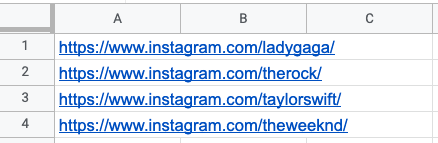
Make this spreadsheet public so PhantomBuster can access it.
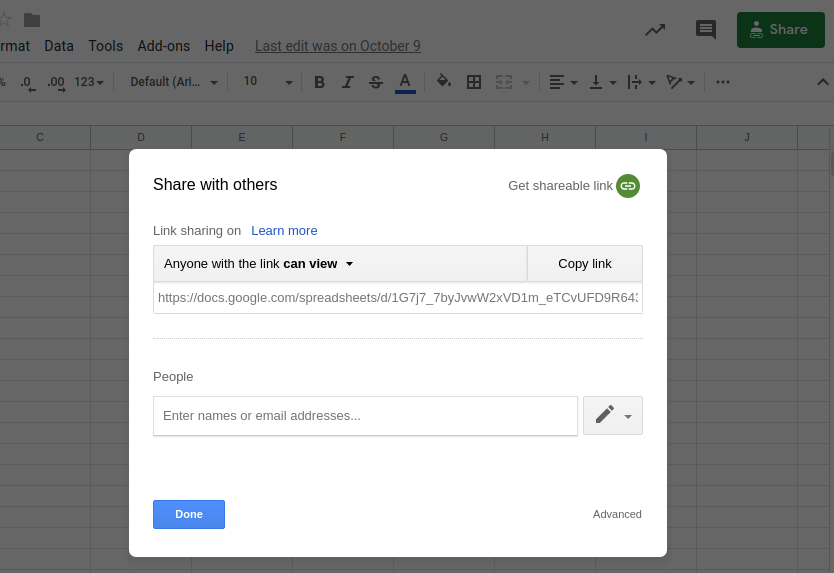
Copy the spreadsheet URL and paste it into your Phantom's setup.
This Phantom will perform 1 of 2 actions on your behalf:
Unfollow
Unfollow only if they don't follow you
Keep in mind that Instagram has very strict auto-following limits. We recommend processing a maximum of 1 profile per hour in order to keep your account safe. This Phantom will process a maximum of 5 profiles per launch.
Specify the number of likes to process per launch
Tell the Phantom how many lines of your spreadsheet you would like it to process each time it launches. If you're using profile URLs, you should also tell the Phantom how many posts from each profile you want it to like.
If the Phantom does not process all of the profiles or posts in your input spreadsheet during a launch, it will pick up from where it left off in the next launch.
It's always best to follow the recommendations given and not process too many at once in order to keep your account safe. If you want to automate in slightly higher volumes, we'd recommend using post URLs instead of profile URLs.


