
Tutorial
Index
Connect to Twitter using PhantomBuster's browser extension
This automation will act on your behalf on Twitter. The safest and most efficient way for the Phantom to connect to your account is by using your session cookie, which you can retrieve using PhantomBuster's browser extension. It's a simple 2-click installation:
If you're operating from another browser, you can find your cookie manually.
Take note: Every time you log into Twitter, a new cookie is created for that "session," so you must be logged in (and stay logged in) on your browser to provide a working cookie.
Give the URLs of the Twitter profiles or tweets you're interested in
You have two options with this Phantom - you can either give the URLs of Twitter profiles whose tweets you want to auto like, or the URLs of specific tweets themselves.
There are two ways you can give these URLs:
1. Process a single profile/tweet
Copy the Twitter profile/tweet URL and paste it into your Phantom's setup.2. Process multiple profiles/tweets
Create a spreadsheet with Google Sheets. Copy the Twitter profile/tweet URLs and paste them into your spreadsheet - one URL per row, all in column A.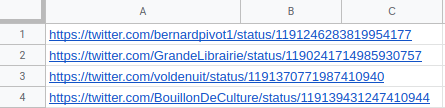
Make this spreadsheet public so PhantomBuster can access it.
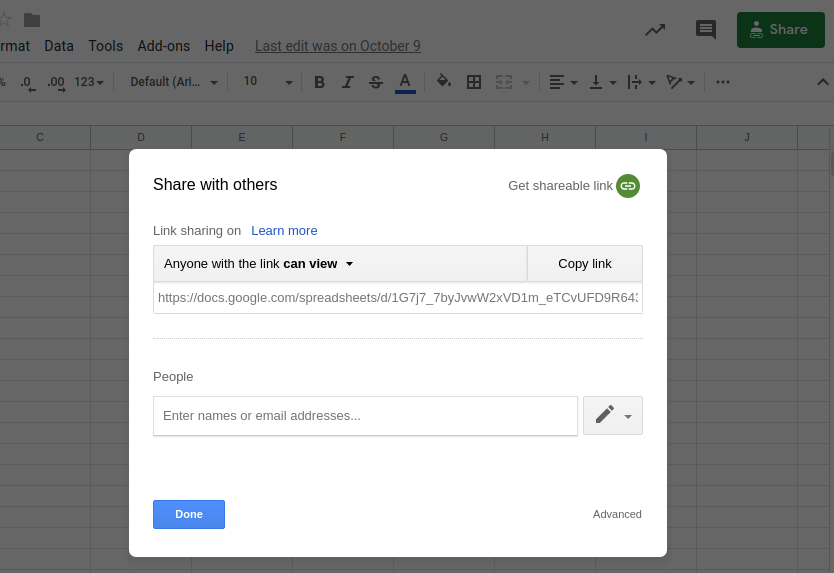
Copy the spreadsheet URL and paste it into your Phantom's setup.
Specify the number of likes to process per launch
Tell the Phantom how many lines of your spreadsheet you would like it to process each time it launches. If you're using profile URLs, you should also tell the Phantom how many posts from each profile you want it to like.
If the Phantom does not process all of the profiles or posts in your input spreadsheet during a launch, it will pick up from where it left off in the next launch.
It's always best to follow the recommendations given and not process too many at once in order to keep your account safe. If you want to automate in slightly higher volumes, we'd recommend using post URLs instead of profile URLs.
Choose to like or unlike the posts
This Phantom will perform 1 of 2 actions on your behalf:
Like
Unlike
If you would like to like and later unlike the same posts, you should duplicate the Phantom and use one for each action, providing the same list of URLs as input.


