
Have you noticed that some LinkedIn outreach consistently delivers better results? The secret is often timing. When decision makers have just been promoted or changed roles, they’re motivated to make an impact and more receptive to new solutions.
Target this window to improve acceptance and reply rates. Teams often see higher conversions when timing aligns with intent signals. In one example, a intent signals. In one example, a sales professional reported a 40% reply rate using the job change filter on LinkedIn:
This guide shows you how to automate a simple, repeatable workflow that reaches recently promoted ICPs exactly when they’re most receptive. You’ll use LinkedIn Sales Navigator with PhantomBuster to detect job-change signals, send automated connection requests, and follow-ups that turn cold outreach into booked conversations.
Why promotion-based outreach works for sales reps
Building relationships with decision makers who’ve never heard of you is challenging. Promotion signals shift the dynamic because:
- New hires enter a critical evaluation window: They’re evaluating vendors and setting up solutions, which speeds decisions and raises purchase likelihood.
- New roles bring new priorities:A new role brings new KPIs, budgets, and goals. They’re re-evaluating old tools and hunting for better fits, giving you the perfect moment to introduce your product as part of their new strategy.
- Brand trust transfers across companies:Old customers in new roles carry brand trust with them. If they’ve used or admired your solution before, they’re far more likely to bring it into their new company, instantly converting what would’ve been a cold lead into a high-intent prospect.
PhantomBuster captures these moments by queuing new leads and starting relevant outreach automatically. With the “Changed jobs (past 90 days)” filter in LinkedIn Sales Navigator, you can pull fresh leads directly into PhantomBuster, automate connection requests, and deliver personalized follow-ups within days of the role change.
The result is a steady stream of qualified leads entering your sales pipeline right when prospects are evaluating new solutions.
Here’s the step-by-step playbook that will help you reach, target, and convert your ICPs:
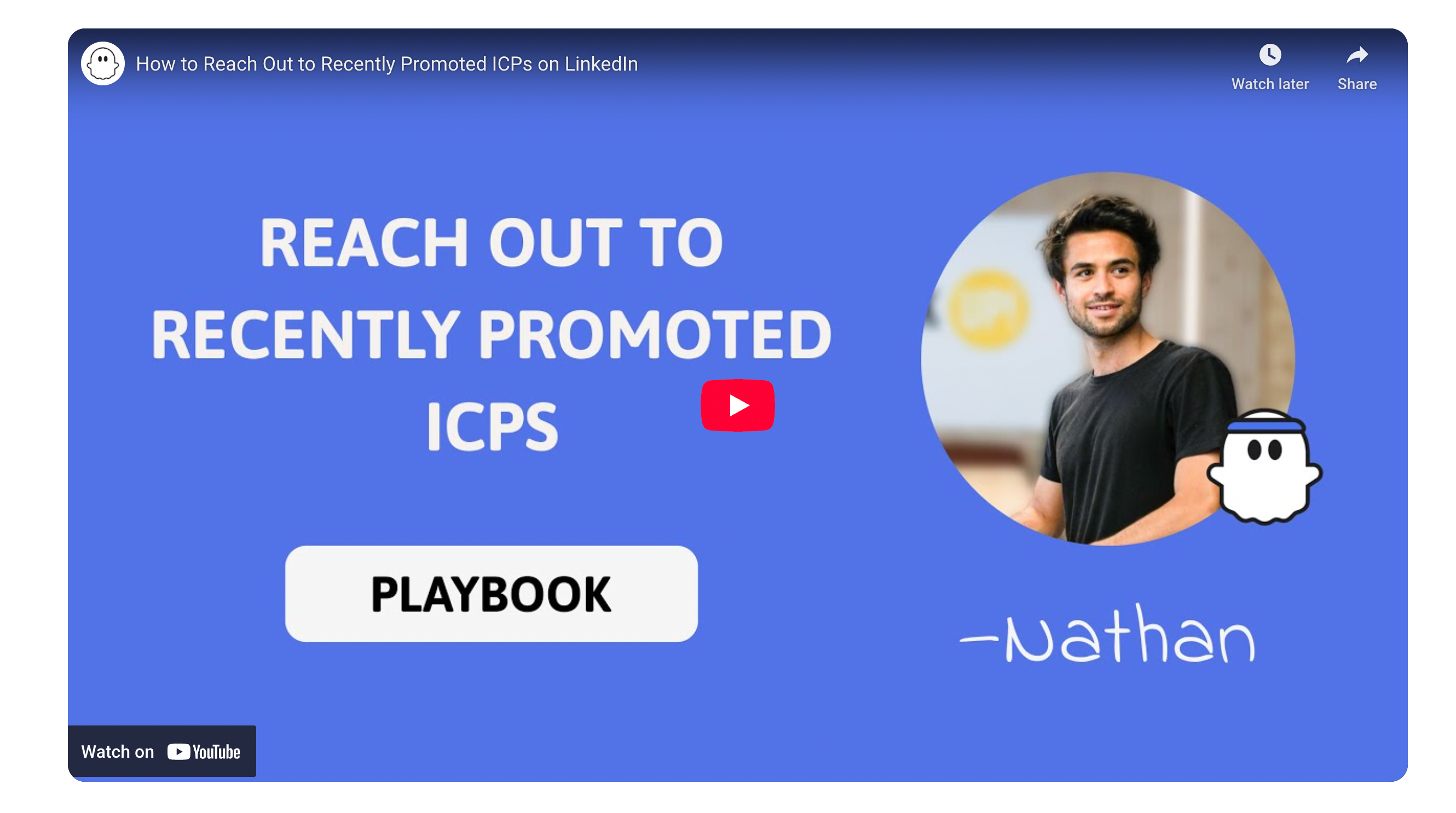
The 5-step playbook to reach recently promoted ICPs
Set up your workflow to engage ideal customer profilesSet up your workflow to engage ideal customer profiles right after a promotion. This is a clear, actionable process that sales teams can implement today.
1. Build your dynamic Sales Navigator search with qualification criteria
Start by narrowing your focus to prospects who’ve just taken on new roles and match your ICP. Build a clean, targeted list with:
- Open Sales Navigator and head to the Lead filters section.
- Add static filters based on your qualification criteria. Example (adjust for your target audience):
- Job title: Sales Manager (or Director of Sales, Head of RevOps, etc.)
- Company size: 50-500 employees
- Geography: Boston, United States
- Industry: SaaS, Technology, Financial Services
- Optional: annual revenue, seniority level, department
- Apply the filter “Changed jobs in the past 90 days” to find recently promoted or moved contacts who may be evaluating new tools.
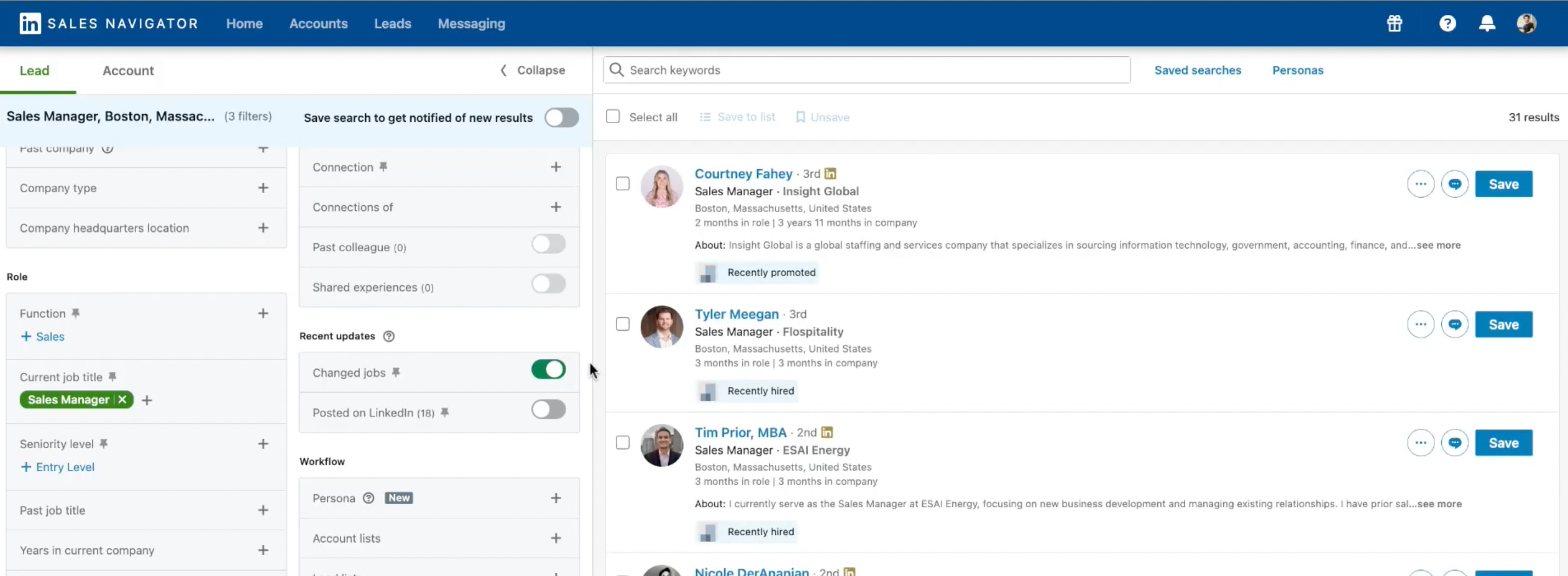
- Review your results and copy the search URL from your browser.
- Save this search in Sales Navigator. It will auto-refresh as promotions occur, feeding your automation with fresh, high-intent prospects daily.
2. Pull leads and connect automatically with PhantomBuster
Turn that saved search into daily automated outreach:
- In PhantomBuster, select the Sales Navigator Search to Lead Outreach automation.
- Authenticate once with your LinkedIn/Sales Navigator session to sync your account.
- Write a short, personalized connection note:
Hi {{firstName}}, happy to connect with {{jobTitle}} like you who’s making an impact at {{companyName}}.
- Paste your filtered search URL to target newly promoted or hired decision-makers.
- Start at 15-25 invites per day per account, then increase gradually as acceptance stays healthy. Toggle the flow on.
Your outreach now runs automatically. As promotions appear, PhantomBuster updates your queue automatically, no spreadsheets or manual list work.
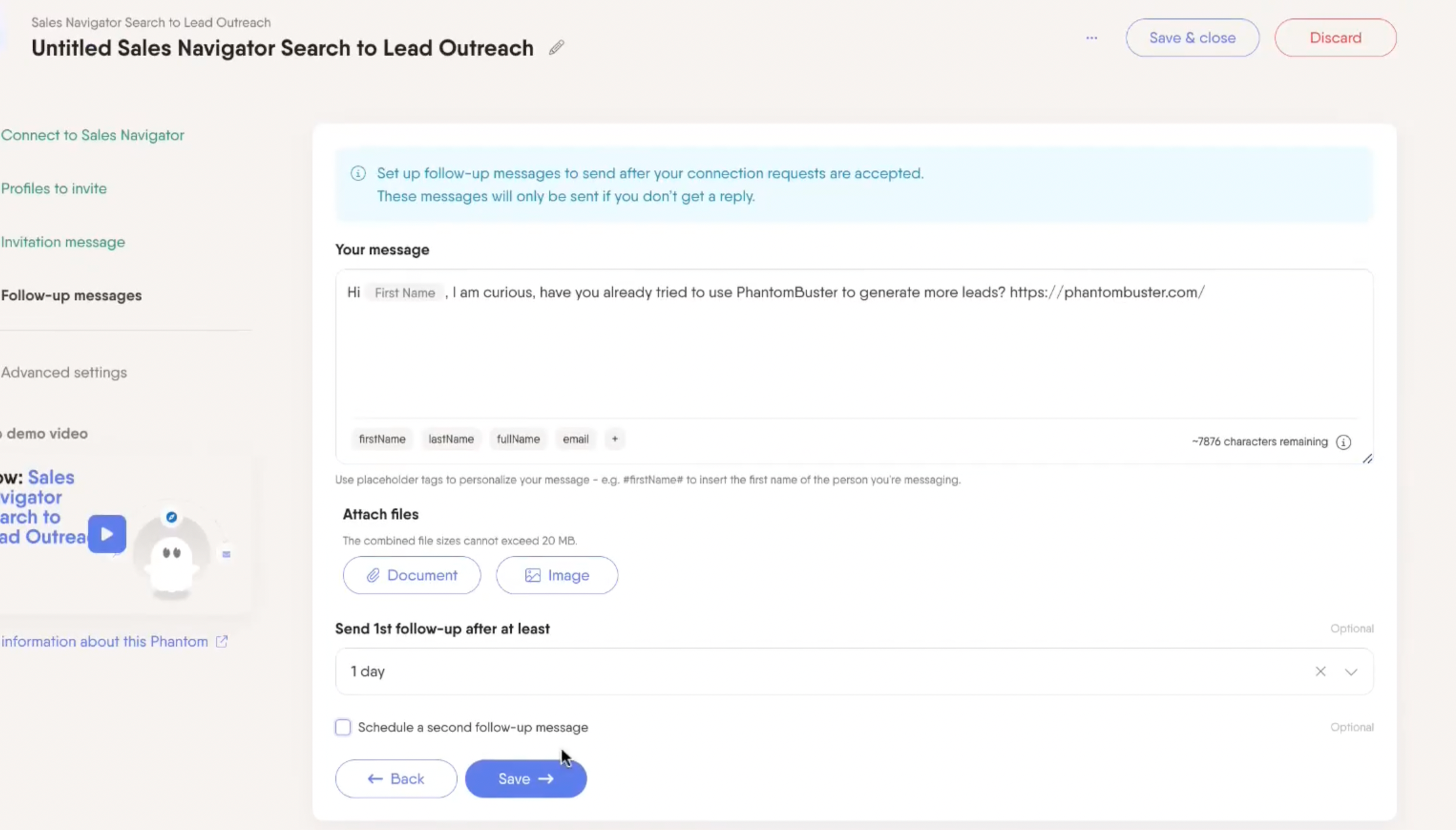
3. Configure follow-ups with sequences for stronger connections
Connection requests are only the beginning. The real value comes from timely, relevant LinkedIn messages after your invite is accepted, moving prospects through your sales pipeline.
- In the same automation, open Sequences to add your personalized messages.
- Recommended baseline cadence for sales outreachRecommended baseline cadence for sales outreach: Send your first message two days after acceptance to stay relevant without feeling intrusive. If there’s no reply, follow up five days later to keep the conversation alive without crowding their inbox. A final optional note seven to 10 days later works well as a gentle check-in or graceful exit. This rhythm keeps your solution visible while giving decision-makers enough space to respond during their post-promotion window:
Message 1 (2 days after acceptance)
Hi {{firstName}}, congrats on the new role at {{companyName}}. If building your sales pipeline is a priority, PhantomBuster automates outreach to recently promoted decision makers in your target market. You can test this workflow on the free trial. Want me to share the setup in a quick overview?

Message 2 (5 days after Message 1)
Quick follow-up, {{firstName}}. This PhantomBuster playbook identifies recently promoted {{jobTitle|plural}} from Sales Navigator and connects with personalized messages. It’s helping sales teams engage high-intent prospects with minimal effort. If you’re exploring quick wins this quarter, happy to share the exact setup on a call.
Message 3 (optional, 7-10 days later)
No rush, {{firstName}}. When your focus shifts to scaling outreach efforts, this automation can help your sales team engage more qualified leads efficiently. If timing isn’t right, I can send the workflow steps for later. Meanwhile, our 14-day trial is available whenever you’re ready.
- Keep invites link-free to protect acceptance and deliverability, and follow LinkedIn’s guidelines to maintain account health. Ramp volumes gradually and monitor your account health for long-term success.
4. Monitor performance and gather actionable insights weekly
Your flow is live. Now optimize it based on data:
- Leads tab: Track statuses (queued, invited, accepted, messaged) for all target accounts.
- Reports tab: Review invitations sent, acceptance rate, replies, and message performance.
- Optimize iteratively based on intent signals and content engagement:
- Adjust ICP filters (job titles, company size) for better targeting.
- Tweak tone and message length based on engagement.
- Test different problem statements or CTAs.
- Replace or pause messages that aren’t delivering results.
5. Systematize and scale across your sales team
Once you establish a baseline that delivers qualified leads, duplicate your flow for different market segments:
- Clone flows with localized messaging and adjusted volumes for different buyer personas.
- Rotate filters monthly if acceptance drops by more than 20% or reply rates slow, to keep lists fresh.
- Standardize on acceptance rate, first-reply rate, meetings booked, and opportunities sourced to compare flows.
- Share actionable insights with your sales and marketing teams to improve overall strategy.
Message templates for your sales cadence
| Use case | Message | Notes |
|---|---|---|
| Connection note | Hi {{firstName}}, happy to connect with {{jobTitle}} like you focused on growth at {{companyName}}. | Short and neutral. Avoid links in the invite. |
| Congratulate career milestone | Congrats on stepping into the {{jobTitle}} position at {{companyName}}. | Works well as a follow-up opener or LinkedIn comment. |
| Structured outreach (acknowledge + pain point + CTA) | Congrats on stepping into the {{jobTitle}} role at {{companyName}}. Many {{industry}} teams I speak with mention how hard it is to scale outreach predictably as the pipeline grows. Would you be open to exploring how automation can help simplify that? | Recommended template: 1st sentence acknowledges their situation, 2nd introduces relatable pain point, 3rd offers a clear call to action. |
| Follow-up #1 (post-accept, +2 days) | Hi {{firstName}}, congrats on the new role at {{companyName}}. If improving your sales pipeline is a priority, PhantomBuster helps sales teams automate outreach triggered by promotion signals. You can test this workflow on our free trial. | Acknowledge promotion, address common pain points, offer clear next step. |
| Follow-up #2 (+5 days) | Quick check-in, {{firstName}}. This playbook helps sales teams identify and engage recently promoted ICPs through LinkedIn. Teams often see higher response when timing aligns with promotions. Would you be open to a call this week to explore if it makes sense for your team? | Reinforce value, provide social proof, suggest specific action. |
| Follow-up #3 (optional, +7-10 days) | If now’s not ideal timing, no worries. Many sales leaders implement this when they’re ready to scale their team’s efforts. Reach out when the time is right, or grab the free trial to explore at your own pace. | Gentle exit that maintains relationship for future engagement. |
Advanced tips for sales teams targeting recently promoted ICPs
- Dynamic prospecting with saved searches: Use the “Changed jobs (past 90 days)” filter in LinkedIn Sales Navigator. If applicable, add role or seniority changes to infer promotions. These lists refresh daily, keeping your pipeline filled with qualified, intent-rich leads without extra manual work.
- Segment by ideal customer profile: Split by market (NA, EMEA, APAC) or vertical (SaaS, Services). Localize messaging and adjust volumes based on regional norms.
- Protect sender reputation: Maintain steady daily activity rather than sporadic spikes. Respect LinkedIn’s guidelines for sustainable results.
- Track meaningful metrics: Focus on invite-to-accept percentage, replies to your first message, meetings booked, and opportunities sourced from these signals. Track message-level performance to refine copy and cadence.
- CRM integration for complete visibility: Use PhantomBuster to auto-sync accepted connections to your CRM with lead-source tags. This helps measure ROI, attribute deals accurately, and scale successful outreach templates across your team.
- Test and iterate continuously: Run A/B tests for message tone, CTA placement, and timing after promotions. Review conversion data weekly and double down on sequences that perform best.
Recommended settings to get started quickly
Sales Navigator criteria
- Job titles: Start with one to two specific roles (e.g., VP Sales, Director of Marketing)
- Company size: Begin with your sweet spot (e.g., 50-200, 200-500, 500+)
- Geography: Focus on one region until you hit stable acceptance and reply rates for two weeks, then expand
- Intent signal: Changed jobs (past 90 days)
- Additional qualifiers: Industry, annual revenue, department if they matter for your qualification criteria
PhantomBuster configuration
- Primary automation: PhantomBuster’s Sales Navigator Search to Lead Outreach (connect and message leads from your saved search)
- Optional: PhantomBuster’s Sales Navigator Search Export automation for deeper analysis and list QA
- Message sequence: +2 days (Msg 1), +5 days later (Msg 2), optional +7-10 (Msg 3)
- Reporting cadence: Weekly review with your team; iterate if any metrics trail goals by more than 20%
Frequently asked questions
What if I don’t have Sales Navigator?
You can approximate this with standard LinkedIn search and collecting profile data, but you’ll miss the “Changed jobs (90 days)” signal in Sales Navigator. Expect more manual qualification and lower precision when targeting decision makers.
How often does the search refresh for new prospects?
Saved Sales Navigator searches update continuously as profiles change. New promotions flow into your PhantomBuster automation automatically each time it runs, keeping your sales pipeline filled with fresh prospects.
How many connection requests per day is safe for my team?
Start at 15-25 invites per account per day. Increase only if acceptance stays above 40% for a week and account health is stable. Keep invitation notes short and link-free. Maintain consistent activity patterns rather than erratic spikes.
Can I add email outreach after LinkedIn connection?
Yes. Use PhantomBuster to sync accepted connections to your CRM, then send targeted, compliant emails that reference your LinkedIn context and maintain consistent messaging across channels.
Should I explicitly mention their promotion in the initial invite?
Optional but not required. Many successful sales teams keep the invite neutral and save the promotion acknowledgment for Message 1 to improve acceptance rates and start the relationship.
Can I change my call-to-action as I learn what works?
Absolutely. If your free trial offers aren’t gaining traction but prospects are engaging, test offering a quick call, relevant content, or case studies in Message 1 while keeping the trial offer in follow-up messages.
Start targeting recently promoted ICPs today
Promotion intent signals give your sales team a significant timing advantage. Use it strategically. Set up your Sales Navigator search once, paste the URL into PhantomBuster, and activate your sequence.
New promotions will automatically enter your workflow, ensuring you’re always engaging decision-makers at the right moment with personalized messaging. Combine PhantomBuster automations with Sales Navigator to turn each ICP promotion into a measurable step toward the pipeline.
That’s how leading sales teams turn timing into a predictable pipeline of qualified leads week after week.
Start your 14-day free trial of PhantomBuster; no credit card required. Build a personalized ICP pipeline with LinkedIn and create a steady flow of sales-qualified leads without manual lead management.