
Tutorial
Index
Give the URLs of the LinkedIn posts you're interested in
You have two options:
1. Process a single post
Copy the LinkedIn post URL and paste it into your Phantom's setup.2. Process multiple posts
Create a spreadsheet with Google Sheets. Copy the LinkedIn post URLs and paste them into your spreadsheet - one URL per row, all in column A.
Make this spreadsheet public so PhantomBuster can access it.
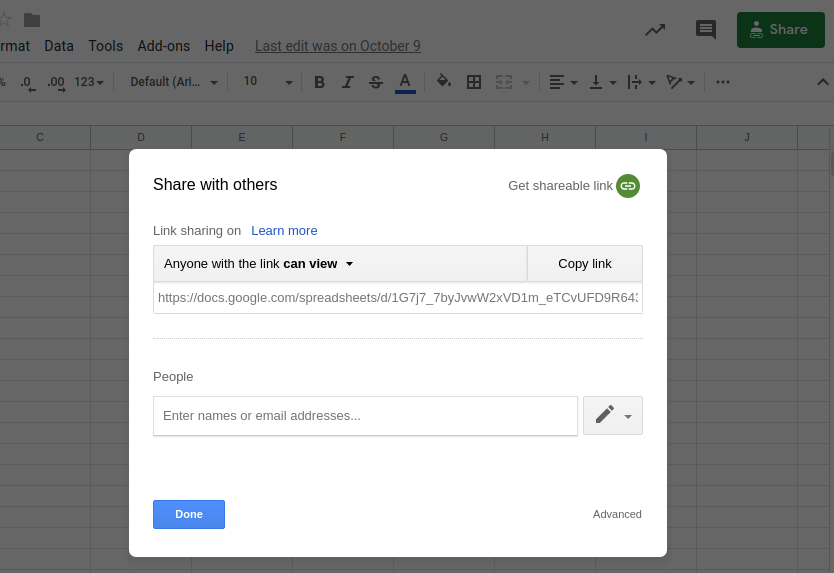
Copy the spreadsheet URL and paste it into your Phantom's setup.
Enrich your leads with verified professional email addresses
Turn LinkedIn profiles into full-fledged leads by enriching them with professional email addresses.
How email discovery works:
The service uses each profile’s full name and company name to search for a professional email address, verify it, and return the result.Choose your enrichment method:
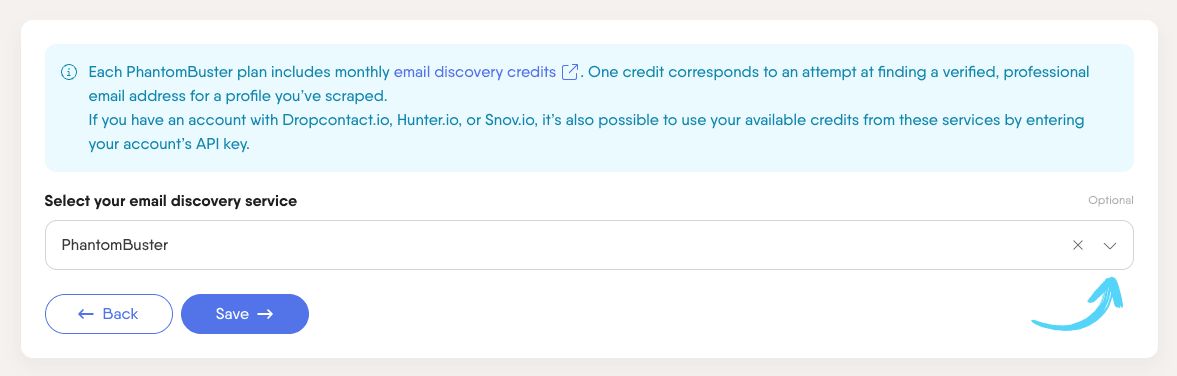
1. Use PhantomBuster credits
Each PhantomBuster plan includes monthly email discovery credits:1 credit = 1 attempt to find and verify an email for 1 profile.
Credits reset monthly.
2. Use your own third-party service
Connect an external email discovery tool by entering your API key from one of these platforms:Take note: Not every profile will return a verified email address, but this step can dramatically increase your chances of landing in inboxes, not just InMail. It depends on the data available, so your number of emails found may be lower than your credits used.
Tip: To reduce the risk of hitting platform rate limits when using email discovery, process about half of the default daily recommendation for your Phantom.
Launch your Phantom
Ready to build your lead list on autopilot? Activate your Phantom!

It'll run at optimal times to gather leads from your selected sources efficiently.
You can follow its actions in real time as results files appear and update, giving you a clear picture of your pipeline building itself in the background.

