
Tutorial
Index
How to use the LinkedIn Event Inviter
PhantomBuster’s LinkedIn Event Inviter Automation helps you automatically invite your 1st-degree LinkedIn connections to your events. This tutorial covers how to set up and launch the Automation efficiently.
Requirements: A connected LinkedIn account, a list of 1st-degree connections (not a single profile URL), and an active LinkedIn Event where you are an admin.
Safety limits: The workflow will not send more than 100 invitations per day; for account safety, spread actions across weekday working hours.
Input preparation: Google Sheets must be shared as "Anyone with the link" and CSV inputs must be publicly accessible.
Free plan limits: CSV upload as input is not supported; exports include only the first 10 rows and lack download links or JSON options.
Execution footprint: This Automation uses 1 Phantom slot.
Choose which connections to invite: Provide a list of 1st-degree connections using a saved LinkedIn Leads List, a Google Sheet, or a CSV file. Ensure you use LinkedIn profile URLs for best accuracy rather than names.
Connect your LinkedIn account: Install the PhantomBuster browser extension to connect your LinkedIn session in one click, or manually retrieve your session cookie if not using Chrome or Firefox.
Browser maintenance: Keep Chrome or Firefox updated; outdated browsers can cause cookies to expire quickly and require frequent reconnection.
Provide your event URL: Paste the LinkedIn Event URL into the Event URL field.
Configure behavior: Set the number of profiles to invite per day (leaving this blank defaults to the maximum of 100) and choose whether to send invitations during weekday working hours or randomly.
Scheduling limitation: Only two timing options are available—weekdays during working hours or randomly; custom schedules are not supported.
Optional: Adjust advanced settings: Fine-tune advanced options like execution limits, retries, notifications, and proxies, though defaults are optimized for most users.
Launch and monitor results: Toggle the ON/OFF switch to start the Automation and track progress in the Leads and Report tabs.
Troubleshooting: Some errors may not appear in the dashboard; check the Logs from the workflow’s console page for full details.
For more details, see the full tutorial on the help center.
Give the URLs of the LinkedIn posts you're interested in
You have two options:
1. Process a single post
Copy the LinkedIn post URL and paste it into your Phantom's setup.2. Process multiple posts
Create a spreadsheet with Google Sheets. Copy the LinkedIn post URLs and paste them into your spreadsheet - one URL per row, all in column A.

Make this spreadsheet public so PhantomBuster can access it.
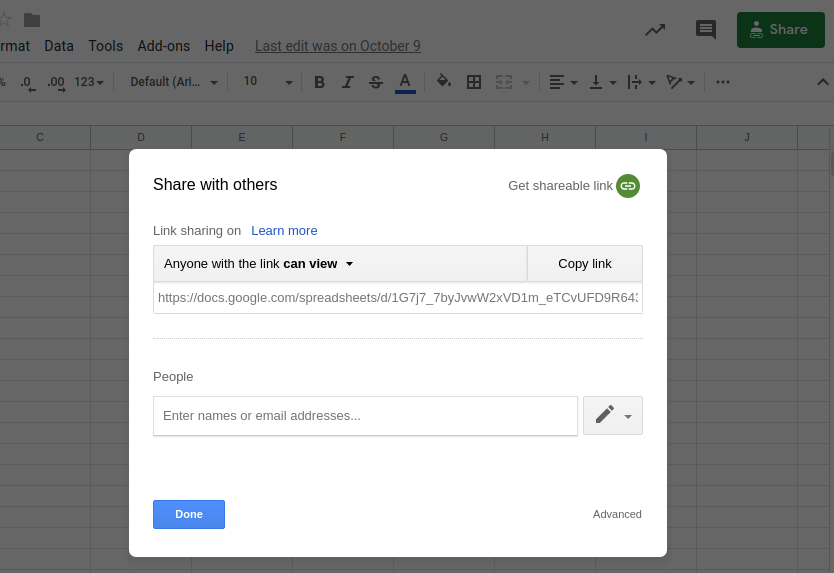
Copy the spreadsheet URL and paste it into your Phantom's setup.
Enrich your leads with verified professional email addresses
Turn LinkedIn profiles into full-fledged leads by enriching them with professional email addresses.
How email discovery works:
The service uses each profile’s full name and company name to search for a professional email address, verify it, and return the result.Choose your enrichment method:
1. Use PhantomBuster credits
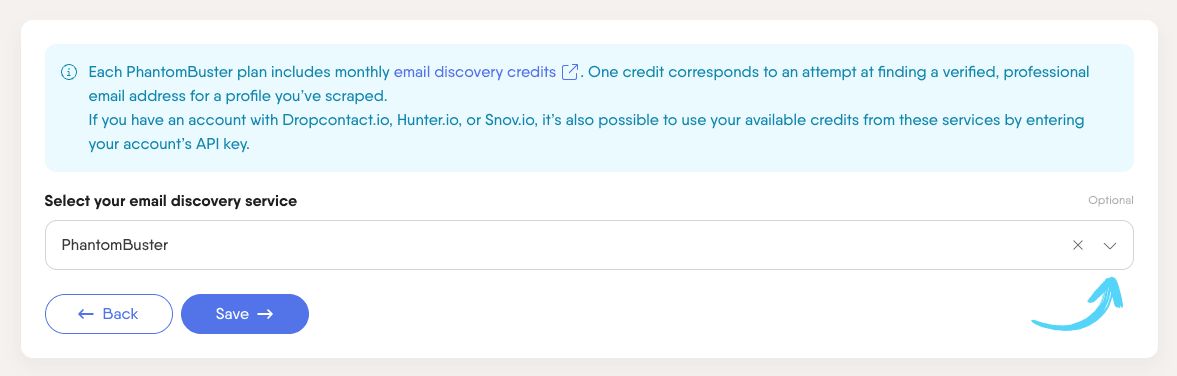
Each PhantomBuster plan includes monthly email discovery credits:1 credit = 1 attempt to find and verify an email for 1 profile.
Credits reset monthly.
2. Use your own third-party service
Connect an external email discovery tool by entering your API key from one of these platforms:Take note: Not every profile will return a verified email address, but this step can dramatically increase your chances of landing in inboxes, not just InMail. It depends on the data available, so your number of emails found may be lower than your credits used.
Tip: To reduce the risk of hitting platform rate limits when using email discovery, process about half of the default daily recommendation for your Phantom. For example, with the LinkedIn Profile Visitor Phantom, aim for 40 profiles per day instead of the default 80.
Launch your Phantom
Ready to build your lead list on autopilot? Activate your Phantom!

It'll run at optimal times to gather leads from your selected sources efficiently.
You can follow its actions in real time as results files appear and update, giving you a clear picture of your pipeline building itself in the background.

