
Tutorial
Index
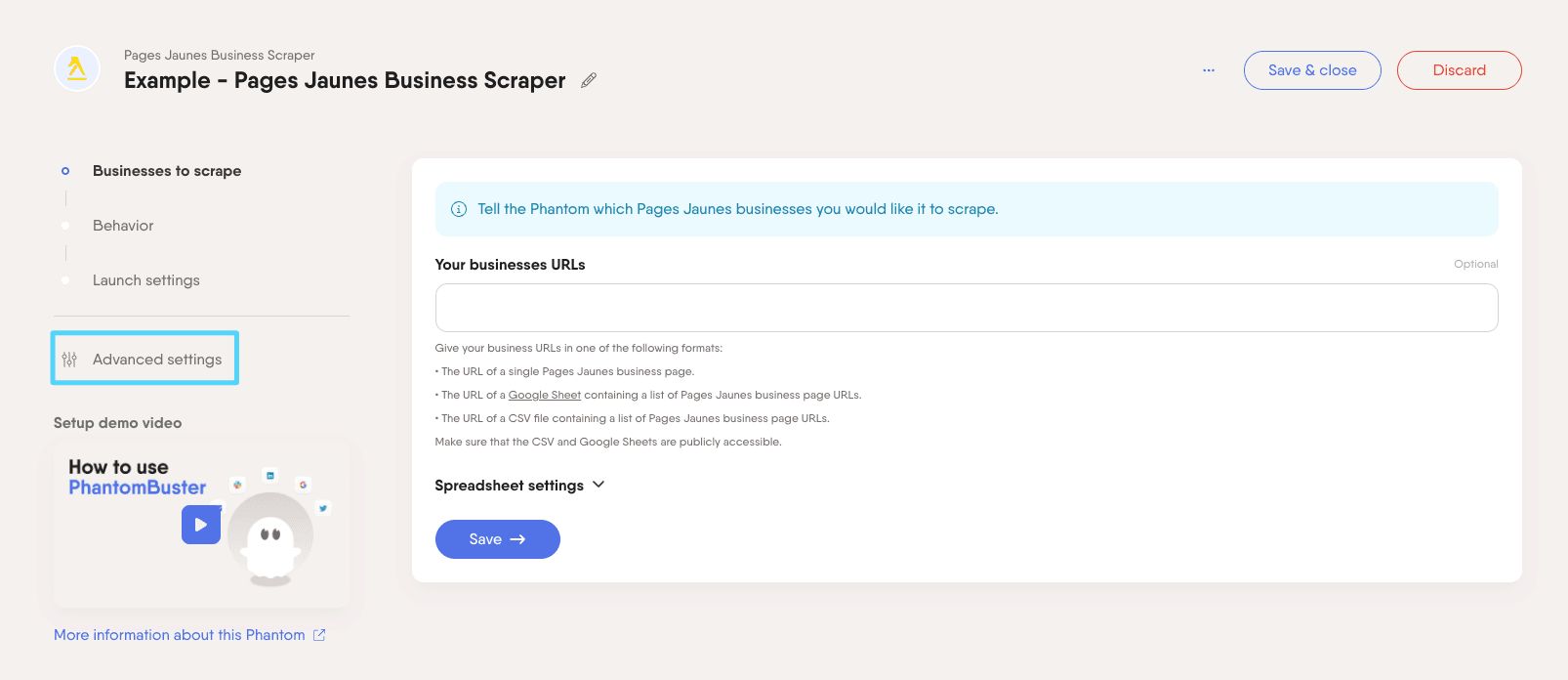
Give the URLs of the Pages Jaunes businesses you're interested in
You have two options:
1. Process a single business
Copy the Pages Jaunes business URL and paste it into your Phantom's setup.2. Process multiple business
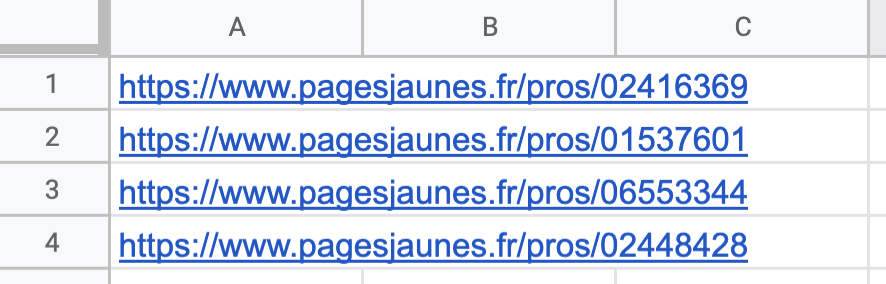
Create a spreadsheet with Google Sheets. Copy the Pages Jaunes business URLs and paste them into your spreadsheet - one URL per row, all in column A.
Make this spreadsheet public so PhantomBuster can access it.
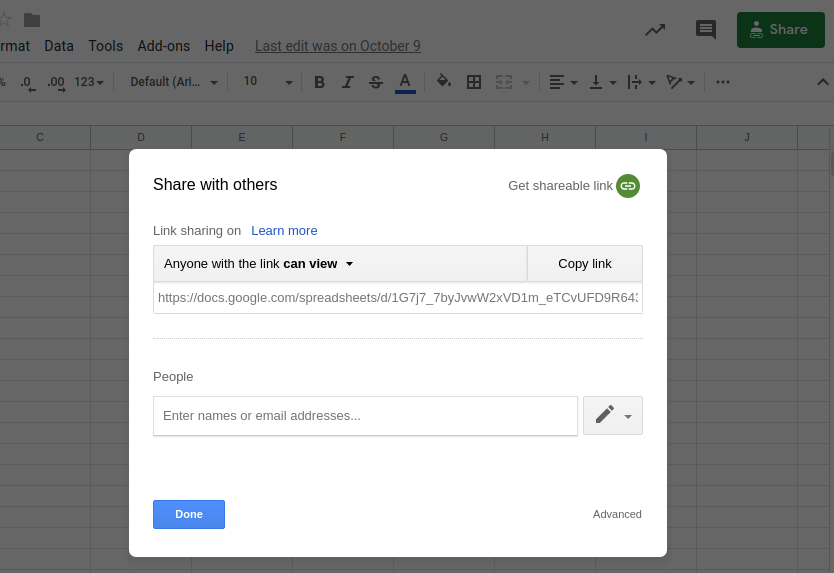
Copy the spreadsheet URL and paste it into your Phantom's setup.
Specify the number of businesses to process per launch
Tell the Phantom how many businesses you would like it to process each time it launches.
If the Phantom does not process all of the businesses in your input spreadsheet during a launch, it will pick up from where it left off in the next launch.
Set up a proxy to access Pages Jaunes content
To ensure proper access to Pages Jaunes listings, this Phantom requires a proxy located in France.
In your Phantom’s setup, scroll to the Advanced settings section.
Open the Proxies tab and choose one of the following:
- PhantomBuster proxy (France-based)
- HTTP proxy (from an external provider)
- Random proxy from pool (ensure it includes a French option)
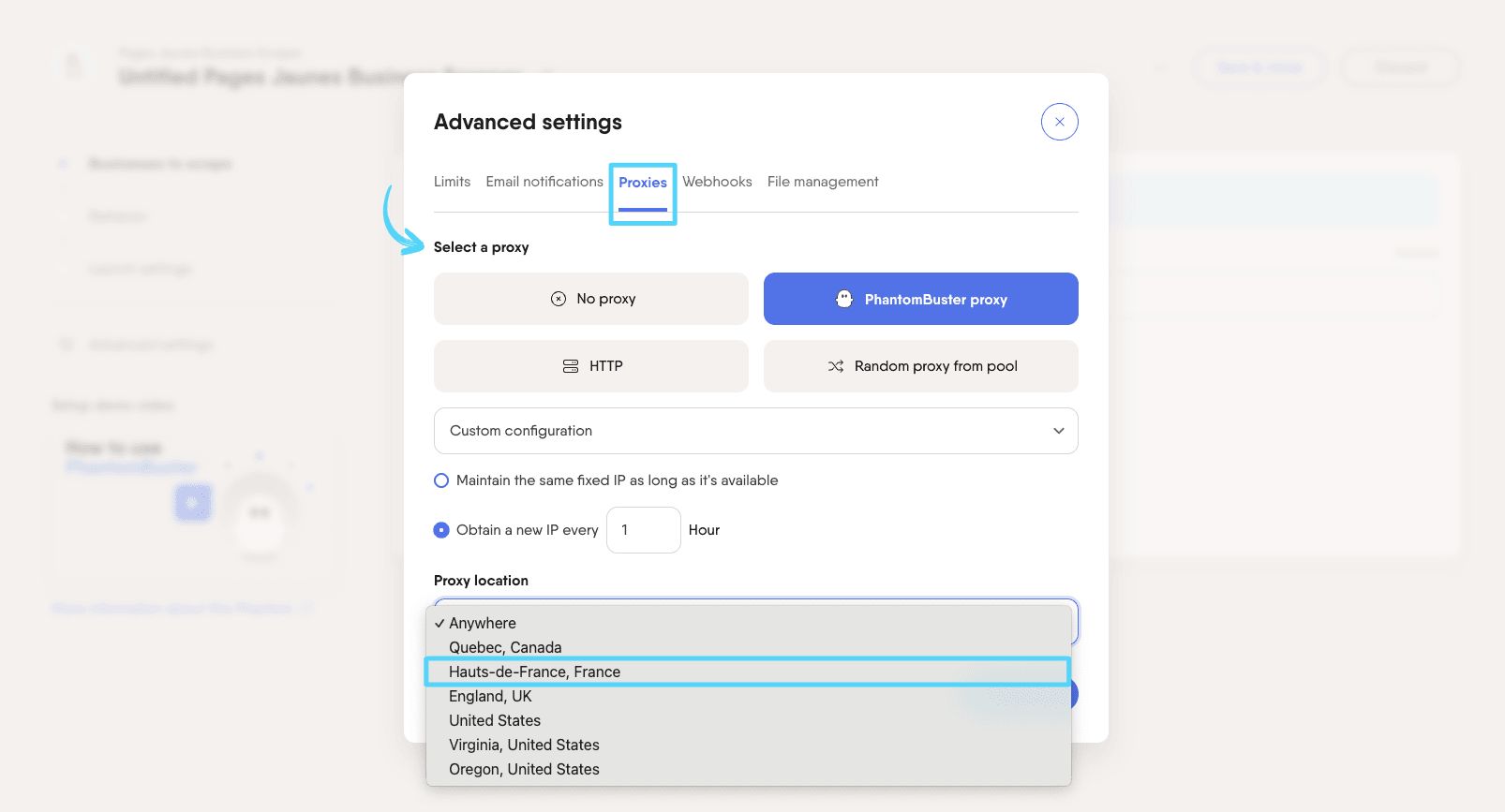
Note: Make sure the proxy you select is geolocated in France, as Pages Jaunes restricts access based on location.
How to use the Domain Name Finder
PhantomBuster’s Domain Name Finder Automation uses public search engines to find a company’s main website domain. This short tutorial walks you through setting inputs, processing options, scheduling, and retrieving results.
Matching limitations:
Returns one main domain (best match) per company. Country & Language settings guide search context but cannot strictly restrict results to specific TLDs (e.g., .fr).
Input requirements:
Google Sheets must be public (anyone with the link); CSV URL input is available on paid plans only. No session cookies are required.
Performance & Safety:
Processes ~14 domains per minute using 1 slot. Search engines may temporarily block shared IPs if requests are too frequent; if stopped, wait ~15 minutes or use a proxy.
Free plan limits:
CSV exports include only the first 10 rows. JSON exports, dynamic CSV download links, and CSV uploads as inputs are unavailable.
Provide the company names:
Choose an input source (My Lists, manual names, a Google Sheet/CSV URL, or My Phantoms), then optionally set Country & Language to guide the search context.
For spreadsheet/CSV inputs, the Phantom reads column A by default. To target a different column, specify its header name in the input settings.
Configure processing settings:
Add any domains to ignore, set how many companies to process per launch for spreadsheet/CSV inputs, and optionally rename the results file.
"Number of companies to process per launch" applies only to spreadsheet/CSV inputs (default 100). Renaming the results file between launches will create a new file and restart processing from scratch.
Select launch frequency:
Run manually, schedule a one-time run, launch repeatedly, trigger it after another Phantom, or use Advanced scheduling for precise timing.
Optional: Adjust advanced settings:
Keep defaults unless you need to fine-tune execution limits, retries, notifications, proxies, webhooks, or file management.
Launch and retrieve results:
Click Launch, then open the Results tab to view found domains and download or export your results.
For full details and configuration options, see the tutorial on the help center.


